Schedule Your Christmas Light Show in One Evening with EZRGB
To schedule a Christmas light show, upload your home layout to EZRGB, purchase your sequences on EZRGB, then sync the results on EZPlayer. From there you build playlists, assign them to dates and time windows, turn on looping if you want continuous playback, and run one full preview and test before opening night.
Controllers must be powered, connected to the network, and visible in EZPlayer for reliable scheduling; missing controllers cannot receive playlists regardless of setup.
Ensure your
.fseqand.mp3files are properly matched and named identically to prevent silent or unplayable songs during the show.Run full test rehearsals at the scheduled time or in darkness to catch latency, sync issues, or lighting effects that only appear in real outdoor conditions.
Use sunset triggers for schedule start times to automatically adapt to changing daylight, avoiding manual recalculations across the season.
Keep all controllers and timers synchronized by centralizing scheduling through EZPlayer and avoiding independent or manual timers that can drift out of sync over time.
Table of Contents
How Do You Schedule a Christmas Light Show?
That workflow above is the short version. The longer version starts before you touch the Schedule screen at all, because a schedule is only as reliable as the hardware and files underneath it. Get your controllers talking to your network, organize your show folder, and decide how you’ll manage EZPlayer this season. Skip this groundwork and you’ll spend opening night troubleshooting instead of watching your display.
Confirm your controllers first. DDP and E1.31 controllers need to be powered, patched into your player network, and visible from whatever device runs EZPlayer. If a controller doesn’t show up in EZPlayer’s device list, it can’t receive data no matter how well you’ve built your playlists.
Here’s what to check before you build a single playlist:
-
Every controller is powered and shows a stable network connection
-
Your xLights show folder has matching
.fseqand.mp3files for each song, with consistent file names -
You’ve chosen local or cloud EZPlayer management, and registered devices if you’re going cloud
-
Outdoor power runs are on GFCI-protected circuits and connections are weatherproofed against rain and frost
EZPlayer runs entirely locally if you’d rather not depend on cloud access, and it still gives you the full playlist, jukebox, and schedule preview toolset. That matters if your internet drops during a storm and your show still needs to run on time.
Pro Tip: If you use cloud, EZRGB does all the work of matching fseq and audio files. If you use stand alone you will need to manually match them if the system doesn’t recognize them.
Building Playlists and Mapping Sequences With EZSequence
Once your controllers are online and your files are named consistently, the real work starts: getting sequences and audio into EZPlayer and organized into playlists you can actually schedule. This is where EZSequence saves you the most time, because manually aligning a sequence to every prop on your house is tedious work most homeowners would rather skip.
-
Add your songs. In the Songs screen, upload each
.fseqfile and pair it with its matching.mp3. Add album art and tags while you’re there. It’s faster than backtracking later. -
Run EZSequence. Feed it your uploaded layout and it auto-maps sequences to that layout, so channel assignments line up with the actual props on your house instead of a generic template.
-
Build purpose-specific playlists. Create separate intro, main, and outro playlists rather than one long list. An intro playlist can tell your audience about your show; your main playlist carries the larger sequences; an outro playlist winds things down at closing time.
-
Tag songs for jukebox mode. If you want visitors to pick a song on demand, tagging makes jukebox selection faster to browse.
Naming conventions matter more than most people expect. A consistent format, something like 01_Intro_JingleBells, makes it obvious at a glance what plays when, and it turns troubleshooting from a hunt into a five-second glance at your file list.
Pro Tip: Keep your outro playlist short, two or three songs, and tag it clearly. A show that just cuts off mid-song at closing time feels unfinished; one that winds down gracefully feels intentional.
Setting Up Your Schedule in EZPlayer
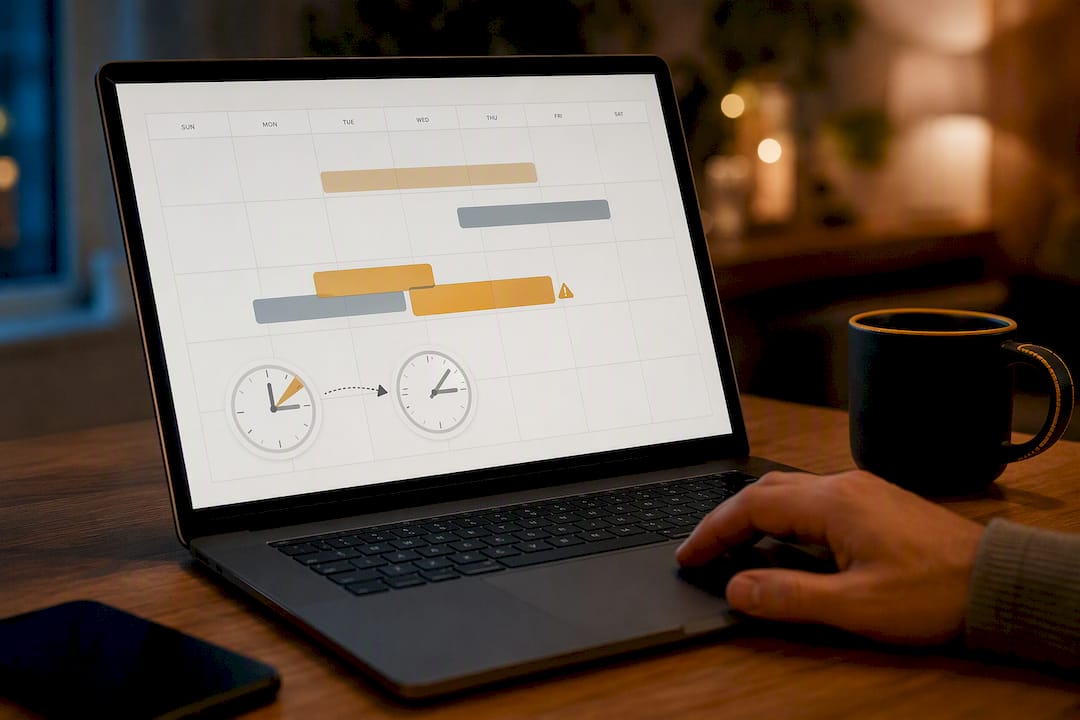
With playlists built, the Schedule screen is where you turn them into an actual running show. EZPlayer’s calendar view lets you assign a specific playlist to a date, a start time, and an end time, so your display can run unattended for the entire season without you touching a remote.
Here’s what each schedule entry needs:
-
A playlist assignment, plus loop or shuffle settings if you want continuous variety rather than a fixed sequence
-
A start time and end time
-
Priority settings if two entries could ever overlap, so EZPlayer knows which one wins (if only one schedule you can skip this step)
-
Intro and outro sequences assigned separately, so transitions feel polished rather than abrupt
Before you finalize anything, run Schedule Preview. (It is the eye icon at the top of the schedule page) It shows exact runtime for the day, flags overlapping entries, and lets you catch priority conflicts before they show up as dead air in front of an actual audience. If you’re spanning daylight saving time, note that your fixed-time entries won’t auto-shift, so recheck them the week clocks change.
Testing Your Show Before Opening Night
A schedule that looks correct on screen and a schedule that runs correctly outdoors are two different things, which is why a real test run matters more than a careful read-through of your settings.
-
Power everything on and confirm each controller appears in EZPlayer’s Show Status tab. A controller that’s powered but not patched to the network won’t show up here, and that’s your first sign of a wiring or network issue.
-
Verify the assigned playlist in Schedule matches what you intended, along with correct start and end times.
-
Watch Player live view and Show Status during playback to check frame delivery and controller health in real time, not after the fact.
-
Fix mismatched audio issues immediately. An
.mp3with no matching.fseq, or missing metadata, is the most common reason a song skips or plays silent. (use cloud to prevent this issue) -
Run a full dress rehearsal at your actual scheduled start time, or a time-shifted test if neighbors would rather not get a preview. This is the step that catches latency and audio sync problems that a five-minute daytime check never will.
Pro Tip: Test at night, in the dark, at your actual scheduled time at least once. Lighting effects that look perfect in a bright garage often read completely differently once the sun goes down.
Keeping Multiple Devices and Timers in Sync
A single show is fairly easy to keep on schedule. A yard with pixel props, a few smart plugs, and maybe an incandescent accent string is where drift creeps in, because every extra timer is one more clock that can slowly fall out of step with the others.
-
Let one authoritative source, your EZPlayer instance, set the schedule, rather than mixing in independent mechanical or digital timers for pixel-controlled elements.
-
Use networked controllers over standalone timers wherever you can. Central hub-based control synchronizes far more reliably than a row of separate outlet timers, each running its own internal clock.
-
For non-pixel fixtures, like a simple incandescent string on the mailbox, route them through a smart plug or hub routine and set that routine to align with your EZPlayer show times rather than running on its own separate schedule.
-
Check controller firmware and run a quick inspection walk before the season starts, and again mid-season if you notice anything off.
-
Plan a fallback. If your network drops, local EZPlayer mode keeps running without cloud access; if power drops, know which breaker resets which zone.
Why Scheduling With EZSequence and EZPlayer Actually Saves Your Evening
The layout designer and preinstalled pixel props exist to remove the guesswork most homeowners hit the moment they try to map channels by hand. EZSequence takes that further by auto-aligning sequences to your actual layout, which cuts out the manual edits that eat up most people’s decorating weekends. EZPlayer’s schedule preview and jukebox tools are built for a season of small adjustments, not a one-time setup you never touch again. Most homeowners we hear from get a basic show mapped, scheduled, and tested in a single evening.
— EZRGB Team
Get Your Show Scheduled Faster With EZRGB
EZRGB is the direct path from a folder of files to a working schedule, without the manual channel-mapping that eats up a weekend on a general-purpose sequencing tool. The buyer path is simple: pick a lighting kit, upload a photo of your house, use sequence mapping software to map the sequences to your layout, then import everything into a player app and schedule it.
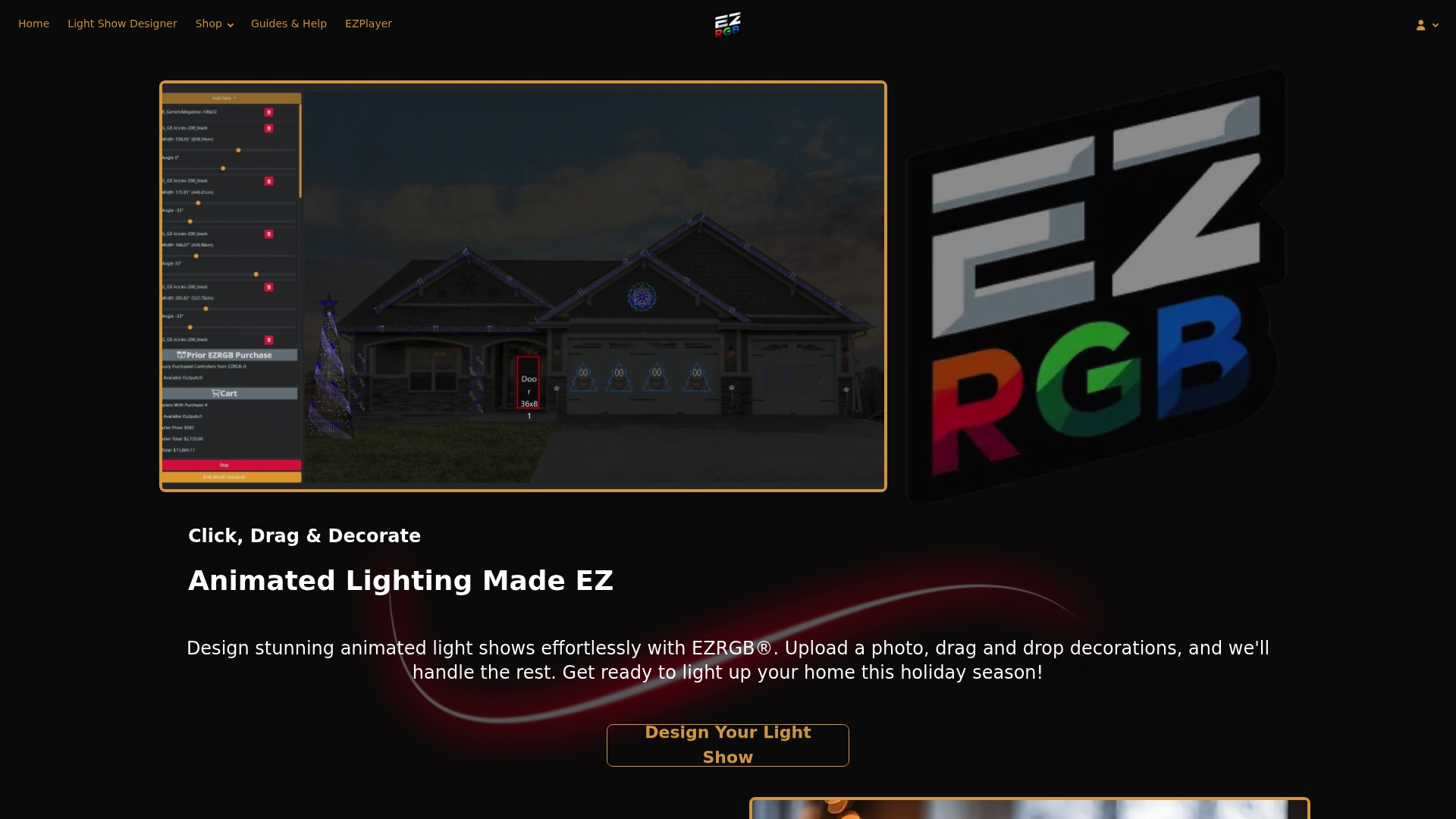
If you’re starting from scratch, the Christmas Light Show Kit 1 comes with plug-and-play props, a pre-programmed controller, and downloadable sequences ready to drop into EZPlayer, so you’re not building a layout and a song library from zero. Browse the full catalog of kits, props, and documentation at EZRGB’s homepage to find the setup that matches your home’s roofline and yard.
Sources
For deeper detail on any step covered here, these resources fill in the gaps:
FAQ
What Software Do I Need to Schedule a Christmas Light Show?
You need EZPlayer to build playlists and set schedule entries, and an xLights show folder with matching .fseq and .mp3 files that EZSequence can map to your layout.
Can I Schedule My Light Show to Start at Sunset Instead of a Fixed Time?
Yes. EZPlayer’s schedule entries support sunset triggers instead of a fixed clock time, which avoids the manual recalculation a fixed schedule needs as sunset shifts through the season.
Does EZPlayer Work Without an Internet Connection?
Yes, EZPlayer can run completely locally, handling playlists, jukebox selection, and .fseq/.mp3 playback without a cloud connection, though cloud management adds remote device registration if you prefer it.
Why Isn’t My Song Playing During the Scheduled Show?
The most common cause is a mismatched or missing .mp3 file for its .fseq counterpart. Check that both files share the exact same name and that metadata was added correctly in the Songs screen.
How Do I Keep Multiple Controllers From Drifting Out of Sync?
Run all of them from a single authoritative scheduler, like EZPlayer, rather than independent timers, and use networked controllers instead of standalone mechanical or digital timers wherever your setup allows it.