How to Do Light Scenes or Playlists in EZPlayer
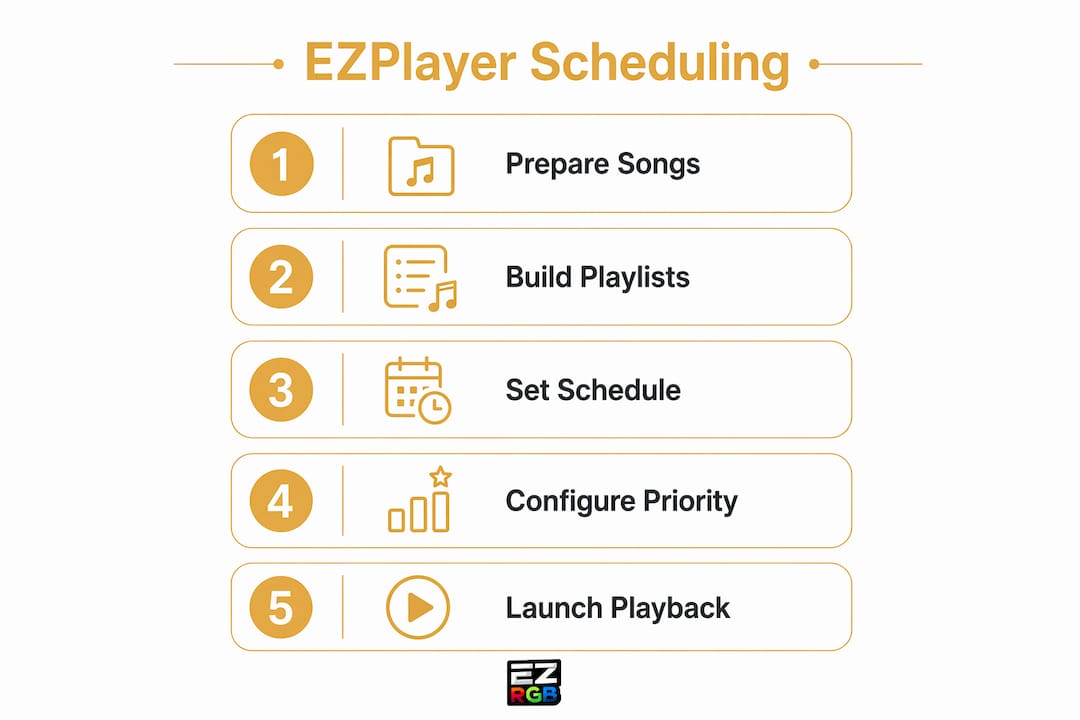
You can build, group, schedule, and run animated light scenes and playlists in EZPlayer in four focused steps: Songs → Playlists → Schedule → Test. On the Songs screen, you associate each .fseq sequence file with its matching .mp3 audio file. On the Playlists screen, you group those songs into ordered sets. On the Schedule screen, you assign playlists to dates and times. Then you preview and verify everything from the Player and Status screens before your first public run.
The four steps map directly to EZPlayer’s main screens:
-
Songs: Add each song, link its
.fseqand.mp3, artwork, and apply tags. -
Playlists: Group tagged songs into ordered playlists or intro/main/outro sets.
-
Schedule: Assign playlists to calendar dates, configure looping, shuffle, and priorities.
-
Test: Preview in Live view, confirm controller status, and run a dry run.
EZRGB’s platform, including the drag-and-drop layout designer and EZSequence, feeds directly into this workflow. EZSequence generates the .fseq files that EZPlayer plays.
Table of Contents
-
How do you schedule playlists and configure advanced playback?
-
How does EZPlayer fit into the xLights and EZSequence workflow?
What do you need before you open EZPlayer?
Getting your files and hardware ready before you touch the Songs screen prevents the most common setup errors. Here is exactly what to gather:
Required files:
-
Your xLights show folder containing layout files and controller mapping data
-
.fseqsequence files (exported from xLights or generated by EZSequence) -
Matching
.mp3audio files with names that correspond to your sequences -
Optional: image files or image URLs for jukebox gallery thumbnails
-
If you are going to link the system and buy EZRGB sequence all this will be done for you.
Hardware and network:
-
DDP or E1.31-compatible pixel controllers connected to an IPv4 local area network
-
Confirm each controller is online and reachable from the machine running EZPlayer before you start
Account and folder setup:
-
Active EZRGB account access
-
A designated show folder that EZPlayer will scan on first launch
When you choose your show folder on first run, include your xLights layout and sequence files there. EZPlayer auto-locates controllers and mapping data from that folder, which means you skip manual reconfiguration entirely.
Time estimates:
-
Copying and organizing files: 10–20 minutes (done instantly if linked to EZRGB)
-
Initial Songs import and tagging: 10–20 minutes per 3–5 songs
-
Controller verification: 10–15 minutes
How to add songs and link sequences on the Songs screen
On the Songs screen, you add each song and link its .mp3 and .fseq file so EZPlayer knows exactly what to play and display. This is the foundation of your entire show.
-
Open EZPlayer and navigate to the Songs screen.
-
Click Add to create a new song entry.
-
Select the
.fseqsequence file for that song. -
Attach the matching
.mp3audio file. -
Enter the song title & artist as you want it to appear in the jukebox gallery.
-
Optionally, add an image file or image URL so the song displays a visual thumbnail.
-
Add tags to the song (examples:
intro,main,outro,upbeat,slow). -
Save the entry and repeat for each song in your library.
Tags are worth spending time on upfront. When you build playlists later, you can filter by tag instead of scrolling through your entire library. A tag like main instantly surfaces every primary show sequence, while intro pulls only your opening tracks.
Pro Tip: Use a consistent file naming convention from the start if doing it manually— for example, SongTitle_v1.fseq and SongTitle.mp3
After adding images or URLs, open the Jukebox gallery view to confirm thumbnails are displaying correctly. Catching a broken image link here takes seconds; finding it on show night takes much longer.
How do you build playlists on the Playlists screen?
On the Playlists screen, you group songs into ordered playlists or non-linear sets so your show runs exactly the way you planned. Adding tags during the Songs step pays off here because you can filter your library instantly.
To create a playlist:
-
Click New Playlist and give it a descriptive name (e.g., “Main Show — Week 1”).
-
Use tag filters to surface the songs you want (e.g., filter by
main). -
Select songs and add them to the playlist in your preferred order.
-
Set playlist: name, priority level, and any notes.
Using intro, main, and outro sets:
A professional workflow separates your show into three playlist types. Your intro playlist plays a short opening sequence before the main event. The main playlist carries your full song library. The outro playlist wraps the show cleanly. This structure gives you smooth transitions and lets you swap individual segments without rebuilding everything.
Editing after creation:
Reordering songs is as simple as dragging entries up or down. To rename a playlist, open it and edit the name field. To delete a song from a playlist, select it and remove it without affecting the song in your library. Tags make reorganization fast when your show grows across multiple weeks or seasons.
How do you schedule playlists and configure advanced playback?
The Schedule screen is where you map playlists and scenes to calendar dates, start times, and specific playback behaviors. This is where your show goes from a list of songs to a fully automated nightly display.
-
Open the Schedule screen and click on a date in the calander.
-
Select the playlist or scene you want to assign.
-
Set the start date, end date, start time, and repeat pattern (daily, weekends only, etc.).
-
Assign an intro playlist to play before the main playlist begins.
-
Assign an outro playlist to close the show.
-
Set the priority level if you have multiple schedule items that could overlap.
-
Enable loop if you want the playlist to repeat continuously until the end time.
-
Enable shuffle if you prefer randomized song order within the playlist.
Priority matters when two scheduled items share overlapping times. The higher-priority item plays; the lower-priority item waits. Plan your priority numbers before show season so conflicts resolve predictably.
Pro Tip: Use background overlay sequences with blending to keep your “Tune To” sign or architectural outlines active between primary songs. Without an overlay, those elements go dark during transitions.
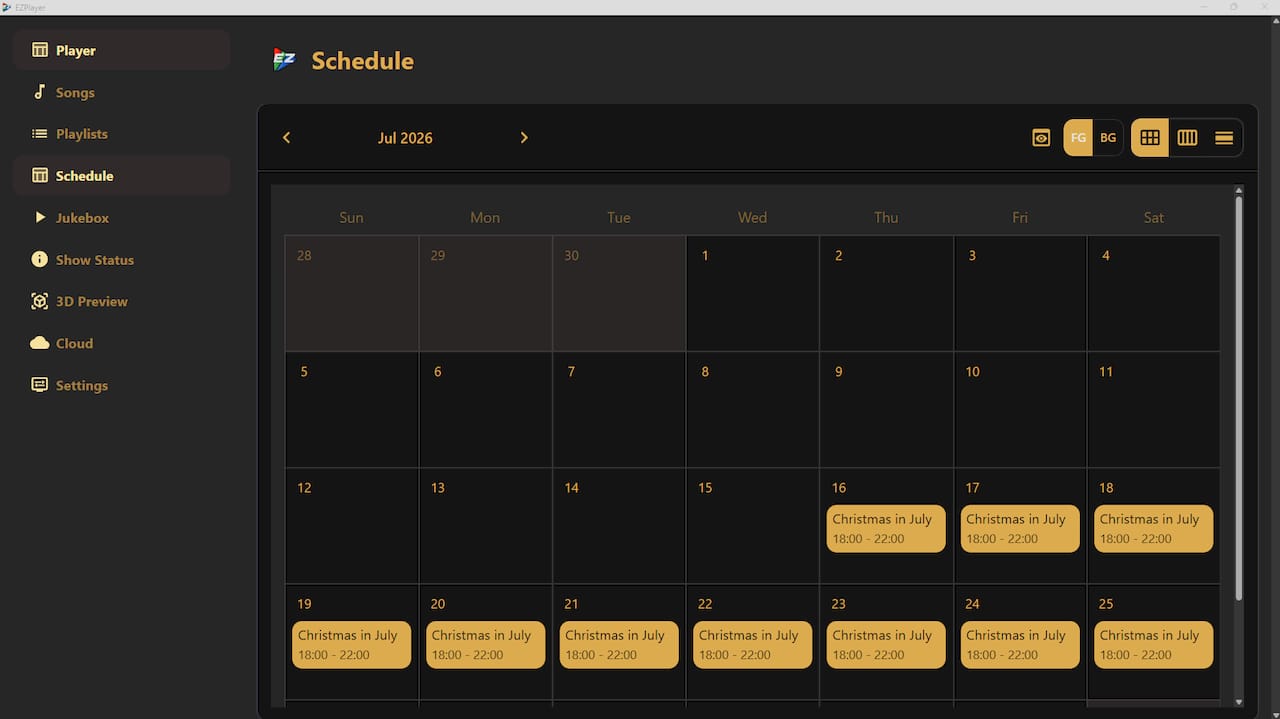
A sample schedule entry might look like this: Intro playlist runs at 5:55 PM, main playlist starts at 6:00 PM and loops until 9:00 PM, outro playlist fires at 9:00 PM. That chain runs automatically every night within your date range.
How to test and preview before your first public run
Always preview and run a dry run from the Player and Status screens before your show goes live. Catching a problem in your driveway is far better than discovering it in front of neighbors.
-
Open the Player or Live view and start a preview of your first playlist.
-
Confirm audio plays correctly and syncs with the pixel animation.
-
Check the Status screen to verify all controllers are online and responding.
-
Test volume automation and confirm the output level is appropriate for outdoor playback.
-
Verify that background overlay sequences and architectural outlines remain active between songs.
-
Run at least one full song from start to finish before declaring the setup complete.
EZPlayer’s live preview and jukebox view let you catch thumbnail issues, audio gaps, and controller dropouts in a controlled setting. The Status screen shows real-time controller health, so you can spot an offline controller before it ruins a sequence.
How does EZPlayer fit into the xLights and EZSequence workflow?
Point EZPlayer at your existing xLights show folder and it automatically finds controllers and layout information.
What to include in your show folder:
-
xLights layout files (
.xmlor equivalent) -
All
.fseqsequence files -
Matching
.mp3audio files -
Controller mapping data or network file
The workflow in order:
-
Link your player to your EZRGB account
-
Push your local files from the player to the cloud
-
Any purchased sequences from EZRGB will automatically download to your machine.
-
EZPlayer scans the folder, populates Songs, and is ready for playlist building.
-
Schedule and run.
Because EZRGB uses cloud-based processing, sequence updates and prop changes can reach your player without rebuilding your schedules from scratch. That means your display can grow and improve year after year without starting over. For a deeper look at the design side, the EZRGB Light Show Designer guide walks through the layout and sequencing steps that feed into EZPlayer.
Common problems and quick fixes for smooth playback
The most common issues are missing or mismatched filenames, offline controllers, and network jitter. Fix these first before investigating anything else.
Quick fixes:
-
Verify
.fseqand.mp3files are in show folder. -
Confirm controller IP addresses are correct and reachable on the IPv4 network.
-
Restart EZPlayer if a controller shows offline after a network change.
-
Test with a short, single-song preview before running a full playlist.
-
Re-check that all files are inside the designated show folder.
Pro Tip: If you have you EZPlayer linked to EZRGB, it will keep your songs up to date without any added work.
| Problem | Quick Check | Fix |
|---|---|---|
| Missing sequence warning | File missing either .fseq or Songs entry |
Add files to show folder |
| No artwork in jukebox | Image path or URL is broken | Re-enter the correct file path or URL in the Songs screen |
| Controller offline | Controller not reachable on network | Verify IP, reboot controller, confirm IPv4 LAN connection |
| Audio out of sync | .mp3 and .fseq lengths differ |
Re-export the .fseq from xLights with the correct audio offset |
| High jitter / choppy animation | Network congestion or low FPS output | Switch to a wired connection; EZPlayer’s higher FPS output reduces jitter compared with older players |
When logs show repeated controller timeouts, reboot the controller first. For edge cases involving specific controller models or RemoteFalcon integration, the AusChristmasLighting community forum is a reliable resource for peer troubleshooting.
Most above listed issues can be fixed easily by using the EZRGB ecosystem. The system makes sure you have the correct show files files, sequences, and songs to save you time. This system requires EZRGB sequences to be purchased
How long does the full setup typically take?
Set aside 30 minutes for initial setup and tagging, 15 minutes for playlist building, and 30 minutes for scheduling and testing. That puts a working scheduled show within reach of a single afternoon for a small display.
Timeline by step:
-
Show folder prep and file organization: 30 minutes
-
Songs import,
.fseq/.mp3linking, and tagging: 30 minutes per 10–15 songs or auto with EZRGB cloud sync -
Playlist assembly (intro, main, outro): 10 minutes
-
Schedule setup and advanced options: 10 minutes
-
Dry-run testing and troubleshooting: 30 minutes
Larger shows with 30-plus sequences or multiple controllers will take longer.
Key Takeaways
EZPlayer’s four-screen workflow — Songs, Playlists, Schedule, and Test — gives decorators a clear, repeatable path from raw .fseq files to a fully scheduled animated light show.
| Point | Details |
|---|---|
| Start with the Songs screen | Link each .fseq and .mp3, add artwork, and apply tags before building any playlist. |
| Use tags to speed up playlist building | Tag songs as intro, main, or outro so you can filter and assemble playlists in minutes. |
| Schedule with intros, outros, and priorities | Chain intro → main → outro playlists and set priority levels so overlapping schedules resolve correctly. |
| Test before going live | Preview in Live view, check the Status screen for offline controllers, and run a full dry run first. |
| EZRGB simplifies the full workflow | EZRGB’s Christmas light show kits include preprogrammed props that pair directly with EZPlayer for faster setup. |
Why EZPlayer works well for DIY decorators
Most DIY decorators hit the same wall: the sequencing software is tough, the playback and scheduling layer feels like a separate technical project. EZPlayer addresses that gap directly. Its web-based interface means you can check controller status, adjust volume, and modify schedules from any device any where in the world.
The community feedback from AusChristmasLighting consistently highlights two things: the accessibility of the web UI and the noticeable improvement in animation smoothness. Higher FPS output and reduced jitter translate to crisper pixel animations on music-synced shows, which matters most when your sequences have fast color changes or tight beat-matching.
The deeper advantage is the integration with existing xLights workflows. You do not have to abandon your layouts or re-map your controllers. EZPlayer reads the show folder you already have and builds from there. Combined with EZRGB’s cloud-based updates, your display can evolve each season without a full rebuild.
EZRGB makes it easy to get your animated display running
If you are ready to move from static string lights to a fully animated, music-synced display, EZRGB gives you the tools to do it without a steep learning curve. The platform covers every step: upload a photo of your home, place pixel props in the drag-and-drop designer, generate sequences with EZSequence, and manage playback with EZPlayer.
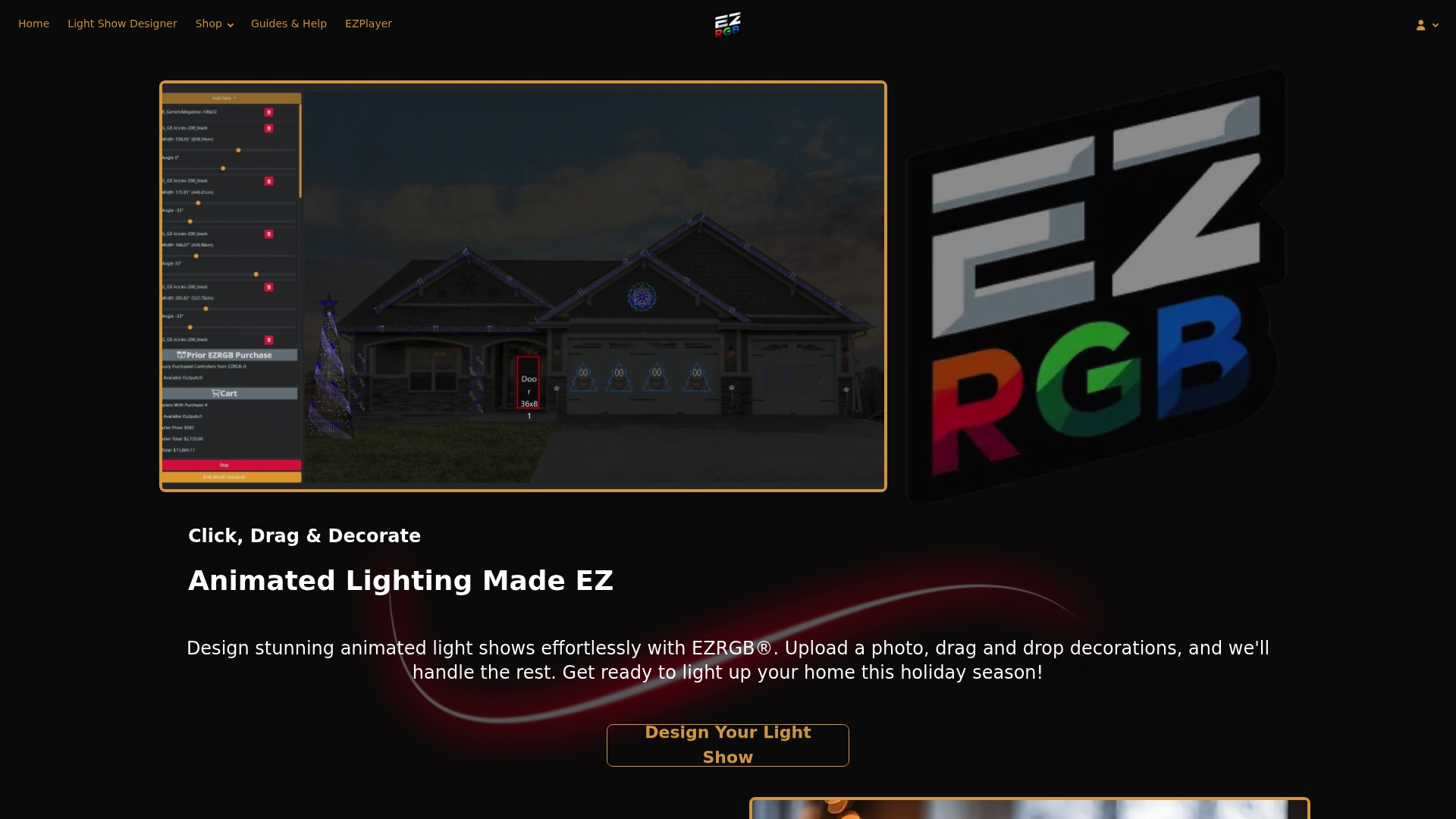
For decorators who want a fast start, EZRGB’s Front Yard Essentials Kit includes preprogrammed pixel props that work directly with EZPlayer, so you spend less time on setup and more time enjoying the show. Visit the EZRGB Guides and Help center for downloads, documentation, and step-by-step tutorials. When you are ready to browse kits and displays, ezrgb.com is the place to start.
Further reading and official references
These are the primary resources to consult for deeper setup details, advanced configuration, and community support:
-
EZPlayer GitHub README — official documentation covering all screens (Songs, Playlists, Schedule, Player, Live, Status) and recommended setup flows; start here for advanced configuration.
-
EZPlayer GitHub repository — source and release notes; useful for checking version-specific features and file format support.
-
AusChristmasLighting community thread — peer discussion on EZPlayer’s web UI, FPS improvements, and controller-specific issues; valuable for edge cases and RemoteFalcon integration questions.
-
EZRGB Guides and Help — official EZRGB documentation hub for layout designer, EZSequence, and EZPlayer workflows.
FAQ
What files do you need to use EZPlayer?
You need .fseq sequence files and matching .mp3 audio files for each song, plus your xLights show folder containing layout and controller mapping data/network. Optional image files or URLs add jukebox gallery thumbnails.
How do light scenes differ from playlists in EZPlayer?
A light scene is a single song entry pairing one .fseq with one .mp3. A playlist groups multiple scenes into an ordered set with scheduling options like looping, shuffle, intros, and outros.
Can EZPlayer work with xLights sequences?
Yes. Point EZPlayer at your xLights show folder and it automatically reads your layout files, controller mapping, and .fseq sequences without manual reconfiguration.
How do you fix audio sync problems in EZPlayer?
Check that the .mp3 and .fseq files were exported with the same audio offset in xLights. If lengths differ, re-export the .fseq with the correct timing, then update the Songs entry in EZPlayer.
Does EZRGB offer ready-made content for EZPlayer?
Yes. EZRGB provides preprogrammed pixel props and show kits, such as the Christmas Light Show Kit 1, and sequences ready to load into EZPlayer for a faster setup.