How EZSequence Auto Maps Sequences to Your xLights Layout
EZRGB’s EZSequence auto-maps sequences your purchase from the site to your xLights layout by matching model types, pixel location, and design of the home, then cloud-renders a finished FSEQ you can download or stream directly through EZPlayer. The whole process starts with two files: upload your xlights_rgbeffects.xml and xlights_network.xml to your EZRGB account, then buy a sequence or try the free Ppd: Jingle Bells Batman Smells to trigger mapping and rendering.
The auto-mapper works on four signals:
-
Type match: exact or near-exact model types between purchased and your layout
-
Pixel location: detects if in the yard or on a house.
-
Size of prop: detecting if a large tree or small snowflake matter.
-
Finger printing models: pattern-based semantic matching when models differ
Table of Contents
-
Step-by-step: import an EZSequence into xLights and run Auto Map
-
Why standardized naming and cloud rendering change everything
How EZSequence auto-maps sequences to your xLights layout
Every purchased sequence is built on a donor layout, meaning the effects target the original creator’s model names and controller topology, not yours. Because no two houses are identical, mapping adapts those effects to your layout’s models before rendering. That is what EZSequence’s auto-mapping solves.

Step-by-Step: Add an EZSequence to EZPlayer, FPP, or xSchedule
An EZSequence is delivered as a rendered .fseq file along with its matching audio file. Because EZRGB has already mapped and rendered the sequence for your xLights layout, you do not need to import effects, match models, or render the sequence again inside xLights.
Before adding the sequence to your player, download both files and keep them together:
-
The
.fseqfile contains the lighting data. -
The
.mp3or other audio file contains the music.
The filenames should match as closely as possible so the player can connect the sequence with the correct audio.
Adding the Sequence to EZPlayer
Open the EZPlayer on your computer, go to the cloud tab and log into the your account connected to EZRGB. The player will start syncing the sequence and audio files to sync from your account that you have purchased. Once the files appear, add the song to a playlist and include it in your show schedule.
Before showtime, use the preview or manual play option to confirm that the music starts correctly and the lights respond as expected.
Adding the Sequence to FPP
Open the FPP web interface and go to the File Manager. Upload the .fseq file to the Sequences section and the matching audio file to the Music section.
Next, open the Playlists page and add the sequence to a new or existing playlist. FPP should automatically pair the sequence with its matching audio file. Save the playlist, test the song, and confirm that your controller outputs and channel settings match the layout used when the EZSequence was rendered.
Adding the Sequence to xSchedule
Open xSchedule and copy the .fseq and matching audio file into your show’s media or sequence folder. Add the sequence to a playlist, select the correct audio file if it is not detected automatically, and save your changes.
Play the sequence once before adding it to the final schedule. Watch several props throughout the song to confirm that the lighting data is reaching the correct controllers.
Check the Sequence Before Your Show
No matter which player you use, perform a quick test before scheduling the sequence. Confirm that the audio plays, the lights begin at the correct time, and all props respond properly.
If a prop is missing or displaying the wrong effects, first confirm that the controller configuration has not changed since the layout files were submitted to EZRGB. Changes to model order, channel assignments, controller outputs, or pixel counts may require the sequence to be mapped and rendered again.

Fine-Tune Your Layout with the EZRGB Layout Editor
EZRGB does its best to automatically identify and map the models in your xLights layout. In most cases, the mapping is completed without any changes. However, every display is a little different, and occasionally a model may need a quick adjustment.
The built-in Layout Editor lets you review how your props were identified before your sequence is rendered. If something doesn’t look right—such as two similar props being swapped or a model not matching the correct location—you can easily fix it with just a few clicks.
The editor displays your layout visually, making it easy to see where each prop is located. You can select a model, change its mapping. This gives you some control without needing additional software.
For most users, these adjustments take only a minute or two. Once you’re satisfied, save your changes and render the sequence. EZRGB will use your updated layout for that render, ensuring your effects play on the correct props.
The Layout Editor is especially helpful when you’ve recently added new decorations, renamed props, or imported a layout from another computer. Instead of starting over, you simply review the suggested mappings, make any needed corrections, and continue with confidence.
How the EZRGB cloud workflow handles mapping and playback
The EZRGB workflow replaces local rendering with a cloud pipeline that handles mapping, rendering, and file delivery automatically. Here is the full sequence:
-
Upload
xlights_rgbeffects.xmlandxlights_network.xmlto your EZRGB account. These files give EZSequence your layout topology and controller configuration. -
Purchase or try a sequence. The Ppd: Jingle Bells Batman Smells sequence is a good starting point — it is available as a free demo and covers a full animated prop set.
-
EZSequence triggers mapping and cloud render. mapping begins and then the system renders or produces your sequence in show player ready format.
-
Download the FSEQ to your local player, or connect EZPlayer to stream it directly from the cloud without manual file transfers.
After the initial render, the cloud layout editor under My Account lets you adjust the render without touching xLights locally:
-
Assign a lead singing prop for focused vocal effects
-
Add backup singing props for background fill during vocals
-
Select a tune-to model for radio sign assignments
-
Apply cool-to-the-beat state effects for beat-synchronized lighting
Make any of those changes and trigger a cloud re-render. The updated FSEQ lands in your account automatically.
Pro Tip: Use EZPlayer for cloud-synced playback rather than downloading FSEQ files manually. When you re-render after a layout edit, EZPlayer picks up the updated file without you copying anything.
EZRGB makes cloud mapping and playback straightforward
Manually transferring FSEQ files and re-rendering locally every time you adjust a prop gets old fast. EZRGB handles the mapping and rendering in the cloud, so your layout changes translate directly into an updated sequence without local tooling.
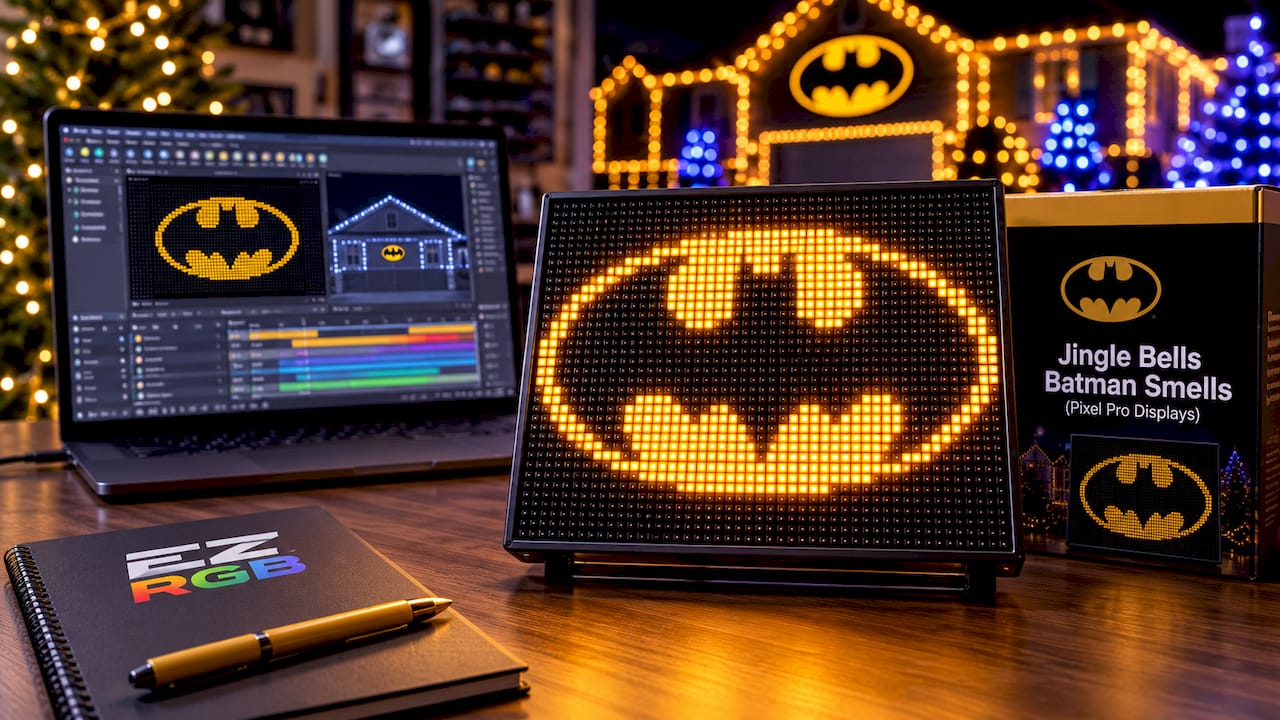
Upload your xlights_rgbeffects.xml and xlights_network.xml to your EZRGB account, then try the free Ppd: Jingle Bells Batman Smells sequence to see the full workflow in action. Once the cloud render completes, download the FSEQ or connect EZPlayer for automatic sync. If the render needs adjustments, open the layout editor under My Account, reassign your singing props or tune-to model, and trigger a re-render. No local software required. Head to EZRGB to upload your files and get your first sequence mapped today.
Useful sources
- Guides and Help | EZRGB — EZRGB support hub with tutorials for layout editing, EZPlayer setup, and sequence management
FAQ
What files do I need to upload to trigger EZSequence mapping?
You need to upload xlights_rgbeffects.xml and xlights_network.xml from your xLights show folder. These two files give EZSequence your model definitions and controller topology.
Can I edit the render after the cloud render completes?
Yes. The EZRGB cloud layout editor lets you reassign lead singing props, backup singing props, tune-to models, and cool-to-the-beat effects, then trigger a re-render without using xLights locally.
Do I need to download the FSEQ file manually?
Not if you use EZPlayer. EZPlayer syncs directly with your EZRGB account and pulls updated renders automatically, so you skip manual file transfers entirely.
What is the Ppd: Jingle Bells Batman Smells sequence for?
It is a free demo sequence from Pixel Pro Displays available in the EZRGB store. It lets you test the full upload, mapping, and cloud-render workflow before purchasing a sequence.