EZPlayer Show Player: What It Is and How to Use It
EZPlayer is a show scheduler and player built for the xLights ecosystem. It reads .fseq and .mp3 files, sends pixel data to your controllers at showtime, and plays audio in sync. Whether you’re a hobbyist running a backyard holiday display or a pro managing a full-scale animated installation, EZPlayer gives you a complete playback and scheduling solution for DDP and E1.31 pixel controllers on your IPv4 network.
Here’s what EZPlayer does at its core:
-
Playlist and jukebox scheduling: Build flexible playlists with priorities, loops, and shuffle, or let viewers queue songs in jukebox mode.
-
Local LAN Web UI with optional cloud registration: Control your show from any browser on your network, and optionally register with the cloud to manage your show remotely and share a viewer show page.
-
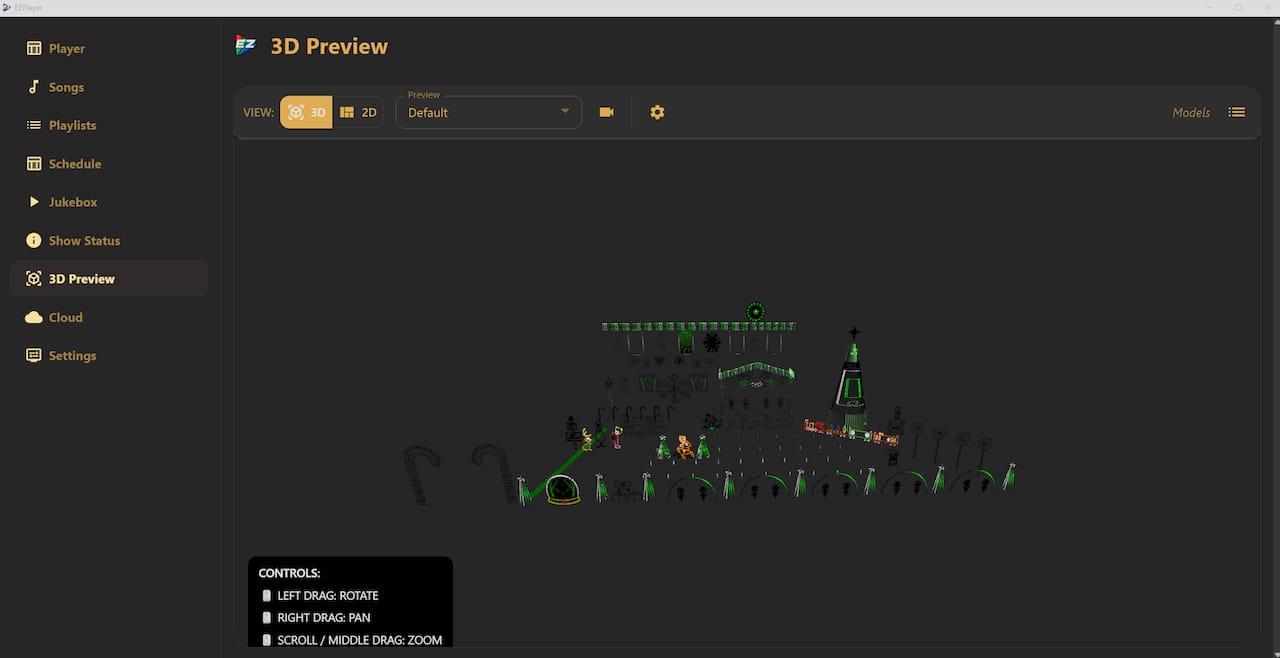
.fseqand.mp3playback over DDP/E1.31: Point EZPlayer at your xLights show folder and it handles the rest, including live 2D/3D preview and controller status monitoring.
Table of Contents
-
Should you run EZPlayer locally or register it with the cloud?
-
Why do creators choose EZPlayer over older scheduling tools?
-
What’s on the EZPlayer roadmap, and what are the current limitations?
-
Ready to run your first animated show with EZRGB and EZPlayer?
How do you get EZPlayer running for the first time?
Getting your first show playing locally can be done quickly if your network is already set up. Follow these steps in order:
-
Download and install EZPlayer — for your platform. Windows users grab the
.exeinstaller, Mac users on Apple Silicon download the arm64.dmg, and Linux and Raspberry Pi 5 users grab the Appimage all from the EZRGB website. Click Here -
Build your first playlist using the playlist and schedule guide and set a basic schedule for automated playback.
Pro Tip: Before your first live run, work through this three-point check: (1) ping each controller by IP to confirm network reachability on the show status tab, (2) watch the controller LED status in EZPlayer’s showstatus screen during a short test sequence, and (3) confirm volume automation is not set to zero for your output device. Most first-run failures trace back to one of these three things.
What core features does EZPlayer give you?
EZPlayer’s feature set covers the full range of what a pixel show creator needs from a player, from nightly scheduling to live audience interaction.
Scheduling and playlist management sits at the center of the experience. You can assign priorities to sequences, set loops and shuffle order, and configure intro and outro clips that play at the start and end of each show window. The schedule UI lets you define time blocks for weekdays and weekends separately, so your show runs differently on a Friday night than a Tuesday.
Jukebox mode is where audience interaction happens. Viewers see an image gallery of available songs and can queue their picks for immediate or upcoming playback. Paired with Remote Falcon viewer control, jukebox mode gives your audience a direct line to the show without you touching a keyboard.
-
Live 2D/3D preview with audio: Watch your show render in real time from the Web UI, with audio playing in sync. This is the fastest way to catch mapping errors before show night.
-
Controller status monitoring: See the health of every DDP or E1.31 controller on your network at a glance.
-
Background sequence blending: Overlay a “tune to” or ambient sequence behind your main playlist, with independent volume and blend controls.
-
Volume control automation: Schedule volume changes on a timeline so your show gets quieter after 9 PM without manual intervention.
-
Cross-platform deployment: EZPlayer runs on PC, Linux, Mac, and Raspberry Pi 5, so you can deploy on whatever hardware fits your setup.
The live preview feature alone saves significant troubleshooting time. Seeing pixel data render against your layout before the show starts means you catch a misconfigured controller address in the preview, not in front of your neighbors.

Which controllers and file formats does EZPlayer support?
EZPlayer is built around the two protocols that dominate the pixel show world and the file formats that xLights produces natively.
| Category | Supported |
|---|---|
| Controller protocols | DDP, E1.31 (sACN) |
| Network requirement | IPv4 (wired) |
| Sequence format | .fseq (xLights sequence files) |
| Audio format | .mp3 |
| Show folder source | xLights show folder or EZRGB sequence downloads |
A few practical notes on compatibility:
-
DDP and E1.31 only. If your controller speaks a different protocol, check whether it offers a DDP or E1.31 bridge mode before assuming EZPlayer won’t work with it.
-
IPv4 is required. IPv6 addressing is not supported. Assign static IPv4 addresses to your controllers to avoid discovery failures after a router reboot.
-
.fseqfiles must be xLights-compatible. EZPlayer reads the xLights show folder structure directly, so sequences exported from xLights drop right in without conversion. -
.mp3for audio. Other audio formats are not currently supported. Convert audio tracks to.mp3before adding them to your show folder.
Pro Tip: Use static IPv4 addresses for every controller on your show network. DHCP leases that expire mid-show cause controller dropouts that look identical to hardware failures.
Should you run EZPlayer locally or register it with the cloud?
Both approaches work well. The right choice depends on how you want to manage your show and whether you need remote access or EZRGB sequence auto-delivery.
| Feature | Local only | Cloud registered |
|---|---|---|
| Show playback | Yes | Yes |
| LAN Web UI | Yes | Yes |
| Remote UI over the internet | No | Yes |
| Viewer show page | No | Yes |
| EZRGB automatic sequence mapping and download | No | Yes |
| Layout sync from EZRGB | No | Yes |
| Deploy full show from cloud | No | Yes |
| Offline operation | Yes | Yes (local playback continues) |
Running locally keeps your show entirely self-contained. No internet dependency means a router outage or cloud service interruption has zero effect on playback. This is the preferred setup for show nights where reliability is non-negotiable.
Cloud registration adds a layer of convenience that matters most during setup and the holiday season. With cloud registration, you can sync your EZRGB sequences directly to EZPlayer, push layout updates remotely, and share a public show page so neighbors can pull up the tune-to frequency or song queue on their phones. You can also build and deploy your entire show through the cloud, directly to your EZPlayer, without touching the local machine.
To register, open the EZPlayer settings, navigate to the “cloud tab”, and scan the QR code or enter your EZRGB account credentials. Once linked, your EZRGB sequences become available for automatic mapping and download to your player.
Running EZPlayer on Raspberry Pi and Linux
Raspberry Pi deployments are popular because a Pi 5 tucked into a weatherproof enclosure near your controller rack is a clean, low-cost solution. A few platform-specific details will save you headaches.
- Headless operation via LAN Web UI — You don’t need a monitor attached. Once EZPlayer is running, access the full UI from any browser on your network using the Pi’s IP address. The CLI, environment variables, and local web interface docs in the GitHub repo cover headless configuration in detail.
Pro Tip: For a Pi deployment, check four things before show night: (1) use an adequately rated USB-C power supply for Pi 5 to avoid undervoltage throttling, (2) prefer NVMe storage over SD card for faster .fseq read speeds on large shows, (3) confirm your USB audio device is recognized by the OS before EZPlayer starts, and (4) bookmark the LAN Web UI address so you can monitor the show from your phone without SSH.
How does EZPlayer work with xLights and EZRGB sequences?
The workflow from design to playback is straightforward, and it gets even faster when you’re using EZRGB sequences with cloud registration.
-
xLights users: Build your layout and sequences in xLights, export your
.fseqfiles to your show folder, and point EZPlayer at that folder. EZPlayer reads the xLights layout file for accurate 2D/3D preview and plays sequences without any conversion step. -
EZRGB users: The EZRGB platform handles layout design, sequence generation via EZSequence, and automatic mapping. When you purchase EZRGB sequences, the cloud registration links your layout to those sequences and pushes them directly to EZPlayer, already mapped to your specific prop configuration.
-
Layout sync keeps your EZPlayer preview accurate as you add or move props in the EZRGB designer. Changes you make in the EZRGB light show designer propagate to EZPlayer without manual re-export.
Automatic sequence mapping from EZRGB to EZPlayer significantly reduces setup time compared with manually mapping generic sequence downloads. When your layout is already defined in the EZRGB designer, purchased sequences arrive pre-mapped and ready to play, which means less time in configuration and more time watching your show run.
The holiday display preview feature benefits directly from this sync. An accurate layout in EZPlayer means the live 2D/3D preview reflects your actual prop positions, making it genuinely useful for catching errors rather than just decorative.
Why do creators choose EZPlayer over older scheduling tools?
The short answer is frame delivery. Community practitioners report that EZPlayer delivers higher frame rates and less jitter than older scheduling tools, and that difference is visible on pixel-dense displays where timing inconsistencies show up as flickering or stuttering animations.
Pixel-dense sequences expose timing issues more severely than older RGB string shows ever did. A 10,000-pixel display running at 40 FPS has no tolerance for a scheduler that drops frames under load. EZPlayer’s architecture prioritizes consistent frame delivery, which is why practitioners running complex 4th of July and Christmas shows have cited it as a reason to switch.
Beyond performance:
-
Simpler playlist and jukebox UI reduces the time you spend in configuration and increases the time your show is actually running.
-
Cloud options let you manage your show from anywhere, which matters when your controller rack is in a garage and you’re watching from the street.
-
xLights compatibility means you don’t rebuild your sequences to switch players. EZPlayer reads what you already have.
The project is actively maintained with community contributions, and real-show testing in live seasonal displays has confirmed stable operation under the conditions that matter most.
What’s on the EZPlayer roadmap, and what are the current limitations?
Planned improvements (roadmap):
-
Additional UX refinements to the schedule and playlist editor
-
Expanded cloud-sync features for remote show management
-
Broader controller tooling and status reporting options
Current limitations to plan around:
-
Audio format: Only
.mp3is supported. Convert other formats before adding them to your show folder. -
Protocol support: DDP and E1.31 only. Controllers that use proprietary protocols require a bridge.
-
IPv4 only: No IPv6 support. Plan your network accordingly.
-
Platform maturity: Raspberry Pi deployments works on Pi 5 or newer.
If a feature you need is on the limitations list, check the GitHub issues tracker for open requests and workaround notes from the community.
How do you troubleshoot common EZPlayer problems?
Most setup problems fall into a small number of categories.
-
Controllers not discovered: Confirm every controller has a static IPv4 address on the same subnet as your EZPlayer host. Run a ping test from the EZPlayer machine to each controller IP before starting the app.
-
Audio not playing or out of sync: Verify your output device is selected in EZPlayer’s audio settings. On Linux and Pi, confirm the audio device is recognized by the OS (
aplay -llists available devices). Check that.mp3files are not corrupted by playing them in a standalone media player first. -
LAN Web UI not loading: Confirm EZPlayer is running and check the port number in your settings. Firewall rules on Windows or Linux may block the Web UI port.
Pro Tip: When opening a support ticket or posting to the community Discord at discord, include: (1) your OS and EZPlayer version, (2) a screenshot of the controller status screen, (3) the EZPlayer log file from the session where the issue occurred, and (4) a description of the exact sequence and controller count you were running. This information cuts diagnostic time significantly.
Key Takeaways
EZPlayer is a local-first, xLights-compatible show player and scheduler that runs on Windows, Mac, Linux, and Raspberry Pi 5, with optional cloud registration for remote management and automatic EZRGB sequence delivery.
| Point | Details |
|---|---|
| Core function | EZPlayer reads .fseq and .mp3 files and sends pixel data to DDP or E1.31 controllers in sync with audio. |
| Local vs. cloud | Run fully local for maximum reliability, or register with the cloud to manage your show remotely and auto-install EZRGB sequences. |
| Platform support | Confirmed on Windows, Mac, Linux, and Raspberry Pi 5; wired Ethernet is strongly recommended for Pi deployments. |
| First test | Load a short .fseq locally, confirm controller status in the Web UI, and verify audio sync before enabling cloud features. |
| EZRGB workflow | EZRGB sequences arrive pre-mapped through cloud registration, reducing setup time compared to manual mapping from generic downloads. |
Why EZPlayer completes the EZRGB workflow
The EZRGB platform is built as an end-to-end pipeline: you design your layout in the EZRGB designer, generate your sequences with EZSequence, and then EZPlayer takes over to schedule and deliver those sequences to your controllers. Each step is designed to hand off cleanly to the next, so you spend your time watching your display run rather than troubleshooting configuration files.
What makes this pipeline practical for real shows is the automatic mapping. When you purchase EZRGB sequences and register your EZPlayer with the cloud, your sequences arrive already mapped to your specific layout. That’s the part that traditionally consumed hours of manual work in older workflows. The EZRGB sync guide walks through the exact steps for linking your account and pushing sequences to your player. For creators who want the full picture of how the design side works, the EZRGB designer guide covers layout setup in detail.
Ready to run your first animated show with EZRGB and EZPlayer?
EZRGB gives you the complete pipeline from design to playback. Start with a Christmas light show kit that includes pre-programmed controllers, RGB props, and sequences ready to load into EZPlayer. Your layout is already defined, your sequences arrive mapped, and EZPlayer handles the scheduling, jukebox, and live preview from day one.
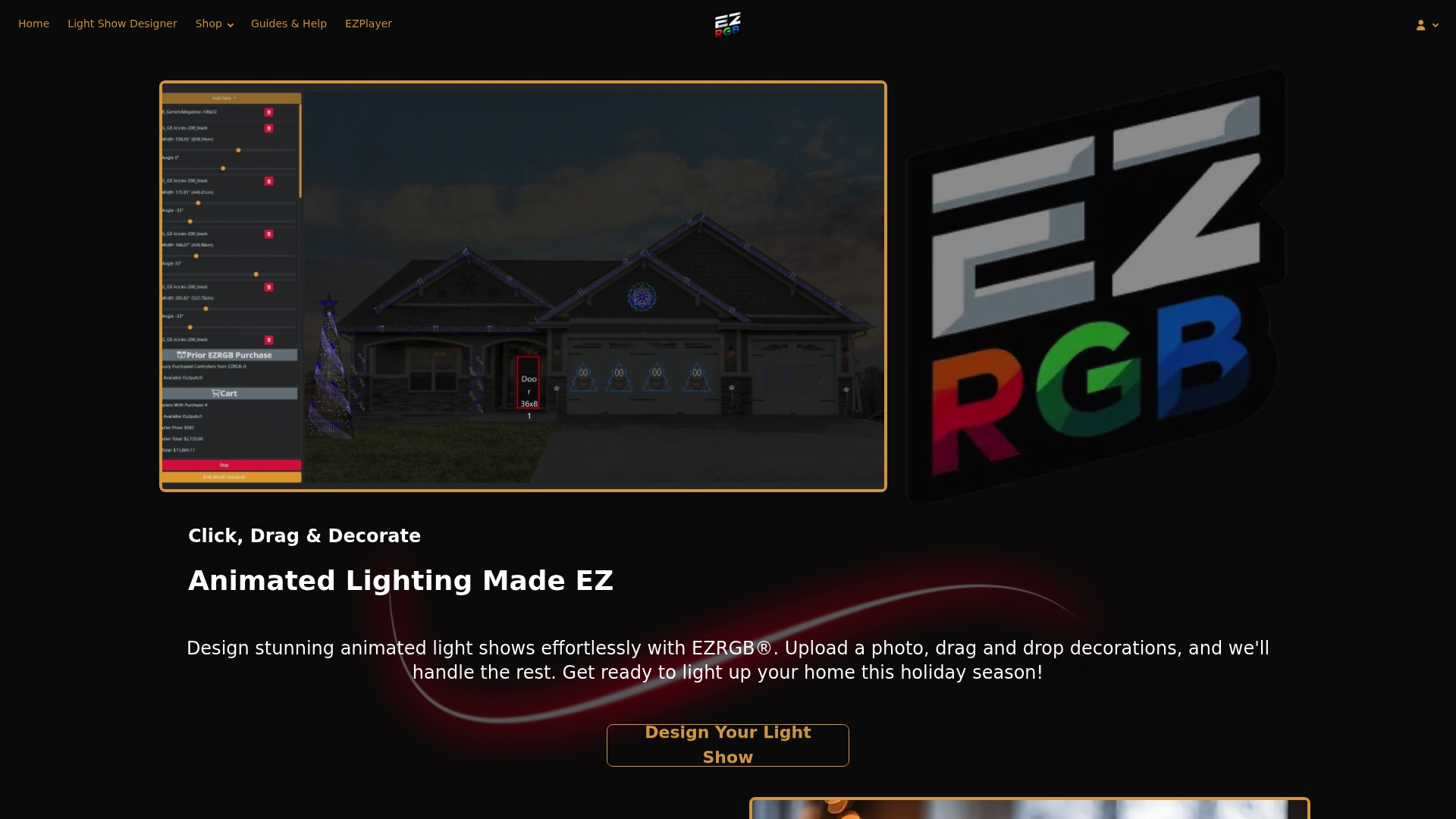
EZPlayer works entirely on your local network with no cloud account required, and you can register with the cloud whenever you’re ready for remote management and automatic sequence updates. Visit EZRGB.com to browse kits, props, and sequences, or head to the guides and help center for step-by-step setup documentation covering installation, controller configuration, and EZPlayer cloud registration.
Useful sources
-
EZPlayer download page can be found on EZRGB website
-
EZPlayer GitHub issues tracker — open bugs, feature requests, and community workarounds
-
Community fork: CaCtus491/ezplayer — active community fork with additional context on project development
-
EZRGB guides and help center — setup guides for EZPlayer installation, cloud registration, and EZRGB sequence sync
FAQ
What is EZPlayer used for?
EZPlayer is a show scheduler and player for xLights-compatible pixel displays. It reads .fseq and .mp3 files and sends pixel data to DDP or E1.31 controllers in sync with audio.
Does EZPlayer require an internet connection to run?
No. EZPlayer runs fully locally on your LAN with no internet connection required. Cloud registration is optional and adds remote UI access and automatic EZRGB sequence delivery. Cloud option does require internet to access remotely but can still run offline if connection is lost.
Which operating systems does EZPlayer support?
EZPlayer runs on Windows, Mac, Linux, and Raspberry Pi 5. Raspberry Pi OS and Ubuntu are both confirmed working based on community reports.
How does EZPlayer connect to EZRGB sequences?
With optional cloud registration, EZPlayer links to your EZRGB account and automatically downloads and maps purchased sequences to your layout, eliminating manual mapping work.
What file formats does EZPlayer play?
EZPlayer plays .fseq sequence files and .mp3 audio files from an xLights show folder. Other audio formats need to be converted to .mp3 before use.