How EZRGB Syncs with Your EZPlayer: Setup Guide
EZRGB and EZPlayer work together automatically. After you register your player to your EZRGB account, EZPlayer syncs your purchased sequences, audio, playlists, and schedules from the cloud, maps everything to your layout, and keeps it up to date, no USB drives or manual file transfers. You can also monitor and control your player from the EZRGB cloud.
Here is what the process looks like at a glance:
-
Select your show folder. Open EZPlayer, point the player to your xLights show folder or select a new blank folder, then click on the cloud tab to log in with your EZRGB credentials. That single step unlocks cloud access.
-
Cloud download and mapping happen automatically. EZPlayer pulls your
.fseqsequence files,.mp3audio, playlists, and layout mappings from the EZRGB cloud and validates them before playback begins. -
If auto-sync does not start, check three things first: Go to the cloud screen and confirm you are signed into the correct EZRGB account, verify the show folder path is accurate, and make sure your internet connection is active.
Jump to the Quick Start checklist below to get syncing in under ten minutes.
Table of Contents
-
Step-by-step: sign in, register, and point EZPlayer to your show folder
-
Why cloud sync makes your animated display better year after year
-
Why cloud-connected mode is the right choice for most displays
How do you get cloud sync working right now?
Follow these steps in order. Most users are up and running in five to ten minutes.
-
Install or open EZPlayer on your show computer or dedicated player device.
-
Sign in with your EZRGB account credentials. Use the same email and password you use on the EZRGB website — this is the most critical step, because the player cannot access cloud sequences until it authenticates with the correct account.
-
Select your xLights show folder. This is the directory where your
.fseqfiles, audio, and xLights configuration files live. If you have not created one yet, select the option for a blank folder, then point EZPlayer to it. -
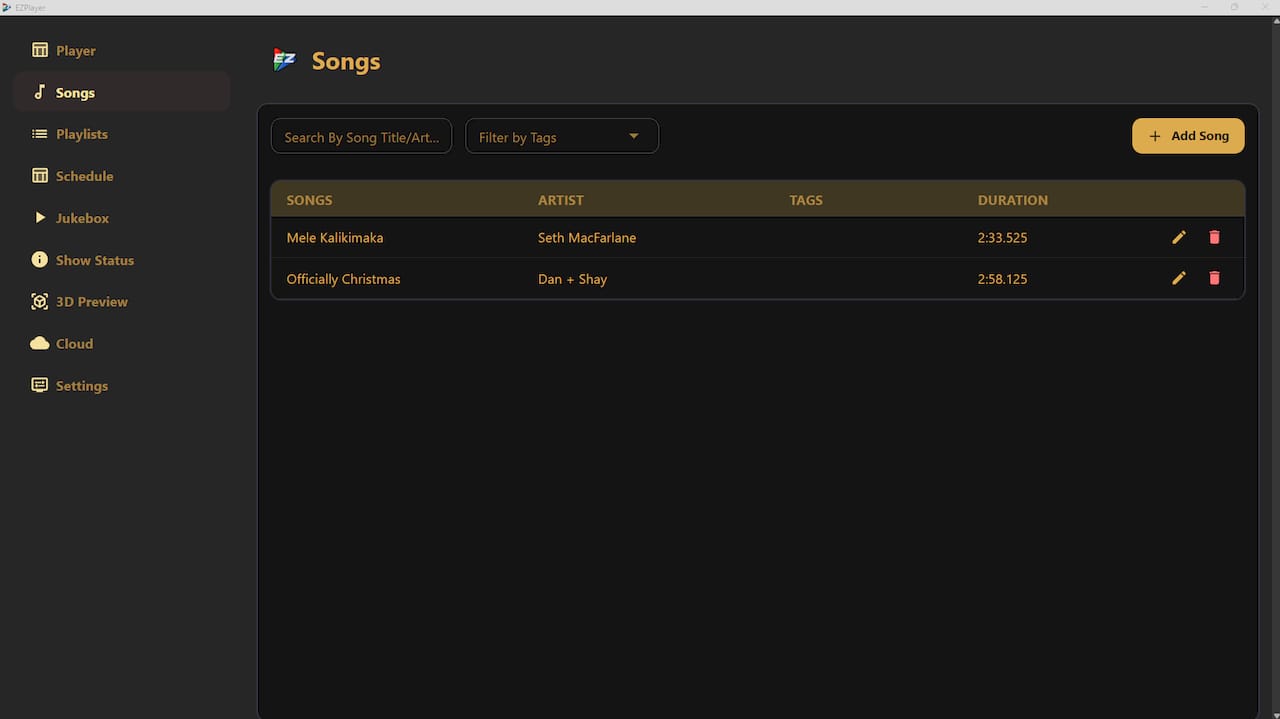
Verify the sync worked. You should see your purchased cloud sequences listed in the player, a recent download timestamp, and a green or active controller status.
Quick confirmation checklist:
-
Cloud sequences are visible in the player’s song list
-
Download timestamp reflects today’s date or the most recent purchase
-
Show directory is set to the correct folder path
-
Controller status shows as reachable
-
No error messages appear in the player log
Pro Tip: The single most common setup mistake is signing in with a different email address than the one tied to your EZRGB purchases. Double-check the account email before troubleshooting anything else.
How does the EZRGB cloud-to-player sync actually work?
EZRGB’s cloud stores your sequences, audio files, playlists, and layout mappings. When EZPlayer authenticates with your account, the server lists every cloud sequence available to you, and the player downloads and validates them into your configured show folder for local playback.
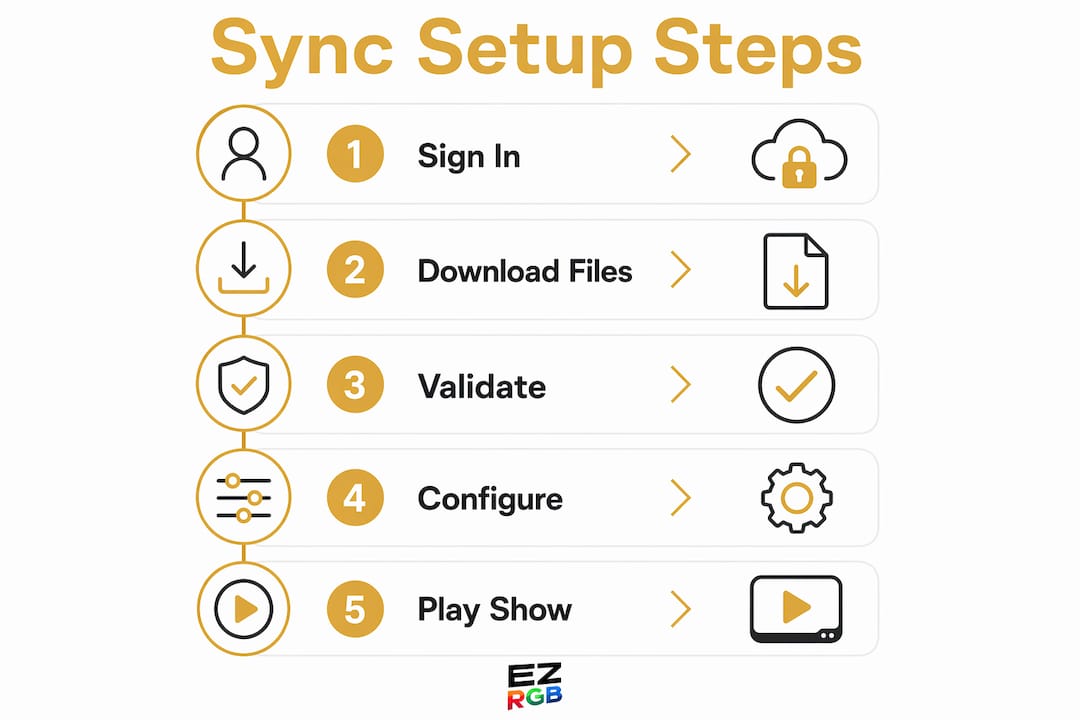
Think of it as a two-stage process: the cloud handles storage and delivery, while EZPlayer handles local execution.
What each component does:
-
EZRGB cloud: Stores purchased
.fseqsequences,.mp3audio, layout mappings from EZSequence, playlists, and schedules. Pushes updates whenever you buy new content or modify your design. -
EZPlayer: Authenticates with the cloud, requests available sequences, downloads and validates show files before playback, runs the scheduler, and manages jukebox/live play overrides.
-
Local network and controllers: Receive pixel frames from EZPlayer’s local frame server via E1.31 or DDP protocols at show time. The cloud does not stream frames directly — EZPlayer generates and sends them locally.
Data flow summary:
Cloud sequences → EZPlayer authentication and download → file validation → local frame server → controller network → animated light display
EZSequence, EZRGB’s auto-mapping tool, generates the sequence layout based on where you placed your props in the drag-and-drop designer. That mapping travels with the sequence to EZPlayer, so the player knows exactly which pixels belong to which prop without any manual configuration on your end.
| Component | Role in sync |
|---|---|
| EZRGB cloud | Stores and delivers sequences, audio, playlists, and layout mappings |
| EZPlayer | Authenticates, downloads, validates files, runs scheduler and frame server |
| xLights or EZRGB show folder | Local directory where downloaded files are stored and read |
| Controllers (E1.31/DDP) | Receive pixel frames from EZPlayer at show time |
Local mode vs. cloud-connected mode: which should you use?
EZPlayer supports two operating modes, and the difference matters for how your show stays current.
Cloud-connected mode is the default for most EZRGB users. The player maintains an active internet connection, receives automatic sequence downloads, enforces cloud-pushed schedules and playlists, and allows remote monitoring of the player’s status. If you purchase a new sequence or update your layout in the designer, the player picks up those changes on its next sync without you touching a file.
Local-only mode runs entirely from your local show folder. The player reads whatever .fseq and audio files are already there and ignores cloud updates. There are no remote schedule overrides and no automatic downloads.
When each mode makes sense:
-
Cloud-connected: Use this for your live holiday display. Automatic updates, remote scheduling, and cloud playlist control all require an active connection. This is the mode EZRGB is designed around.
-
Local-only: Useful for offline testing, network troubleshooting, or situations where the show computer has no internet access. You will need to copy files manually if you make changes in the designer.
The EZPlayer documentation includes separate getting-started guides for cloud and local setups, which is worth bookmarking if you plan to run both configurations at different times.
Step-by-step: sign in, register, and point EZPlayer to your show folder
These steps get cloud syncing working end-to-end, from first launch through confirmed sequence download.
-
Open EZPlayer on your show computer.
-
Select the show folder. Select a new folder or your existing xLights show folder.
-
Sign in with your EZRGB credentials. Enter the email and password associated with your EZRGB account. If the player does not recognize your account, verify you are not using a secondary or guest email.
-
Register the device if prompted. Some setups require a one-time device registration to associate the player with your account.
-
Run the show directory validation. EZPlayer’s built-in validation tool checks for missing or inaccessible files and returns a list of any problems. Fix those before proceeding.
-
Confirm success using the checklist below.
Post-setup confirmation checklist:
-
Cloud sequences appear in the player’s sequence list with correct names
-
Download timestamp is current
-
Show directory path is correct and validated with no missing files
-
Controller status is active and reachable
-
Scheduler shows your configured show times
What file types and controllers does EZPlayer support?
EZPlayer consumes .fseq sequence files, .mp3 or .wav audio, and xLights or EZRGB configuration files. The player sends pixel frames to controllers using E1.31 (sACN) or DDP protocols over your local network.
| File type | Purpose |
|---|---|
.fseq |
Pixel frame sequence data for animated lighting |
.mp3 / .wav |
Synchronized audio track for the show |
xlights_networks.xml |
Network and controller mapping configuration |
xlights_rgbeffects.xml |
Effect and layout mapping from xLights |
xLights is the open-source sequencing platform that generates .fseq files and the configuration files EZPlayer depends on. EZRGB’s EZSequence tool builds sequences that are compatible with this format, so files flow from the cloud directly into the xLights show folder structure EZPlayer expects.
Controller compatibility notes:
-
EZPlayer works with controllers that accept E1.31 (multicast or unicast) or DDP frames
-
The Baldrick 8 Port Controller is a compatible EZRGB hardware example that pairs with EZPlayer outputs
-
Controllers must be reachable on the same local network as the EZPlayer device
How do cloud schedules and playlists control your show?
Schedules and playlists you create in EZRGB are pushed to EZPlayer so the player executes them automatically on time, without you needing to be at the computer.
When you set a show schedule on the EZRGB platform, EZPlayer receives that schedule during its next cloud sync and stores it locally. At the configured start time, the player begins playback from the playlist in the correct order. Jukebox or live-play overrides let you trigger a specific sequence remotely without disrupting the rest of the schedule.
Scheduler features to verify after setup:
-
Recurring schedules are set with the correct days and times
-
Time zone is configured to match your physical location
-
Playlist order reflects the sequence you want for the show
-
Jukebox mode is enabled if you want live remote control during the show
-
Playback logs confirm the player started at the scheduled time
If a scheduled show does not start, check the player’s log for the expected start time entry. A missing log entry usually means the schedule did not sync, while a logged entry with an error points to a file or controller issue.
Troubleshooting common sync failures
Most sync failures trace back to account mismatch, an incorrect show folder, or network and controller reachability. Test these in order before digging deeper.
-
Confirm you are signed into the correct EZRGB account. Log out, log back in, and verify the email address matches the one tied to your purchases.
-
Validate the show directory. Use EZPlayer’s built-in validation tool. It returns a
missingFilesandinaccessibleFileslist so you know exactly what is preventing mapping or playback. -
Check internet connectivity. Open a browser on the same machine and confirm you can reach
ezrgb.com. If not, resolve the network issue before retrying the sync. -
Check firewall and antivirus settings. Some security software blocks EZPlayer from making outbound connections. Add EZPlayer as an exception and retry.
-
Confirm controller reachability. Ping your controller’s IP address from the show computer. If it does not respond, check the controller’s power, network cable, and IP configuration.
Before contacting support, gather:
-
The exact error message from the player
-
Timestamps of failed sync attempts
-
A list of missing or inaccessible files from the validation tool
-
Your show folder path and account email (do not share your password)
The EZRGB Guides & Help hub has additional troubleshooting documentation and a support contact form.
Known gotchas and tips that save you time
The most frequent setup problems are missing xLights configuration files, permission errors on the show folder, and routers blocking multicast traffic. Each one has a straightforward fix.
Common issues and quick remedies:
-
Missing
xlights_networks.xmlorxlights_rgbeffects.xml: These files must exist in the show folder before EZPlayer can validate or play sequences. Open xLights, configure your network and layout, and save the project to generate them. -
Show folder permission errors: On Windows, right-click the show folder, go to Properties → Security, and confirm the user account running EZPlayer has full read/write access.
-
Router blocking multicast (E1.31): Switch to unicast addressing in your xLights network configuration.
-
Wrong account signed in: Sign out completely, clear any saved credentials, and sign back in with the purchasing account email.
-
Sequences visible in cloud but not downloading: Click “Refresh sequences” manually. If the issue persists, validate the show directory — a permission error on the folder often blocks the download silently.
Pro Tip: After any update to your EZRGB layout or a new sequence purchase, run the “validate show directory” check before your next scheduled show. Catching a missing file during the day is far easier than discovering it at show time. For off-season maintenance, connect to the cloud and trigger a manual refresh to confirm all new content has mapped correctly — this is especially useful before the holiday season begins.
Why cloud sync makes your animated display better year after year
Cloud sync removes the need to manually copy files, re-map layouts, or touch a USB drive when you update your show. Your layout and mapping work from the EZRGB designer is preserved in the cloud, so buying a new sequence or adding a prop does not mean starting over.
EZRGB’s drag-and-drop designer lets you upload a photo of your home, place pixel props exactly where they sit on your house, and generate a sequence via EZSequence that matches that physical layout. That mapping travels with every sequence you purchase, and EZPlayer validates it automatically each time it syncs.
For official step-by-step guidance, the EZRGB Guides & Help hub is the authoritative reference for setup, troubleshooting, and new feature documentation.
Key Takeaways
EZRGB syncs with EZPlayer by authenticating your account, downloading cloud sequences and layout mappings into your xLights show folder, and executing schedules automatically — no manual file transfers required.
| Point | Details |
|---|---|
| Account sign-in is the gatekeeper | Sign into EZPlayer with the correct EZRGB account email to unlock cloud sequence downloads. |
| Validate your show folder first | EZPlayer’s built-in validation tool runs in the background to catch missing xLights config files before playback. |
| Cloud mode enables automatic updates | Cloud-connected mode downloads new sequences and schedule changes without manual file copying. |
| Troubleshoot in order | Check account, show folder, internet connection, and firewall. |
| EZRGB handles mapping automatically | EZSequence maps sequences to your physical layout; EZPlayer validates and plays them on schedule. |
Why cloud-connected mode is the right choice for most displays
From the EZRGB Team’s perspective, the biggest mistake users make is treating EZPlayer like a traditional media player — loading files once and leaving them. Animated lighting is different from static LED string lights or incandescent displays. Your layout changes, your prop collection grows, and new sequences become available throughout the season. Cloud-connected mode is built for exactly that reality.
Local-only mode has its place for offline testing or network troubleshooting, but it puts the burden of file management back on you. Every time you update a sequence or adjust your layout in the designer, you would need to manually copy files to the show folder. Cloud mode eliminates that entirely. The player checks in, downloads what is new, validates the show directory, and is ready to run on schedule.
The balance worth striking is this: use local mode to test a new controller or diagnose a network issue, then switch back to cloud-connected for your live display. That way you get the reliability of cloud management without losing the ability to troubleshoot offline when you need to.
Ready to automate your animated light show with EZRGB?
The Designer → EZSequence → EZPlayer workflow is what separates an EZRGB animated display from a standard LED string light setup. You design your layout once, EZSequence programs the lights to match your home’s exact prop placement, and EZPlayer keeps everything current through cloud sync. No re-mapping, no USB transfers, no manual schedule updates.
Whether you are setting up your first Christmas light show kit or expanding an existing display with new sequences, the cloud connection is what makes year-to-year updates effortless. Compatible hardware like the Baldrick 8 Port Controller plugs directly into the EZPlayer workflow, and purchased sequences from the EZRGB store sync to your player automatically after checkout.
Visit EZRGB to browse sequences, kits, and props, or head to Guides & Help to follow the official setup documentation for your specific configuration.
Useful sources
-
EZRGB Light Show Designer: 2026 Guide — Step-by-step walkthrough of the Designer and EZSequence workflow
-
EZRGB main site — Platform overview, product pages, and cloud workflow description
When contacting support, include the exact error message from your player log, the timestamps of failed sync attempts, and the list of missing files returned by the show directory validation tool.
FAQ
How does EZRGB sync with my EZPlayer?
EZRGB syncs with EZPlayer by authenticating your EZRGB account credentials in the player, which then downloads your purchased sequences, audio, playlists, and schedules from the cloud into your local xLights show folder automatically.
What happens if EZPlayer loses its internet connection during a show?
EZPlayer runs the show from locally stored files, so a temporary internet outage during playback does not stop the display. The cloud connection is needed for downloading updates and syncing new schedules, not for real-time frame delivery.
Why are my cloud sequences not showing up in EZPlayer?
The most common cause is being signed into the wrong EZRGB account. Sign out, sign back in with the purchasing account email, and click “Refresh sequences.” If sequences still do not appear, run the show directory validation to check for missing xLights configuration files.
What xLights files does EZPlayer need in the show folder?
EZPlayer requires xlights_networks.xml for network and controller mapping and xlights_rgbeffects.xml for effect and layout mappings. Both files are generated when you save your project in xLights or through the EZRGB designer workflow. If not using xLights EZPlayer will retrieve your files from the cloud.
Can I use EZPlayer without a cloud connection?
Yes. EZPlayer’s local-only mode runs sequences from your local show folder without any internet connection. You will need to copy files manually when you update sequences or layouts, and cloud-pushed schedules and remote monitoring will not be available.