Using Your xLights Layout With EZRGB Sequences
You can use EZRGB sequences with the xLights layout you already have. Instead of manually mapping the purchased sequence to your props, EZSequence uses your uploaded xLights layout information to create a .fseq specifically matched to your display.
Once your EZSequence has been mapped and rendered, download the completed "Edit Files" and purchase the matching audio file. These are the files your show player needs to run the sequence.
You can then use the rendered sequence with EZPlayer, FPP, xSchedule, or another compatible show player. There is no need to open the sequence in xLights or import effects into your layout, the mapping and rendering have already been completed for you.
If EZSequence maps effects that doesn’t look right, you can use the EZRGB Layout Editor to review and correct the mapping before rendering. This is especially useful when your layout uses custom prop or when lead singing prop may not be correct.
The result is a sequence built for your existing display without having to manually map every effect yourself.
The core files you need in place before anything else:
-
.iseqfile: the animated sequence data, generated by EZSequence to match your layout -
.mp3file: the paired audio track that syncs with the sequence -
xlights_rgbeffects.xml: your xLights layout file, which maps every prop and model -
xlights_networks.xml: your controller and universe mapping
Pro Tip: Before copying a single file, duplicate your entire xLights show folder and save it somewhere safe. If anything breaks, you can restore in under two minutes.
Table of Contents
-
How do you download purchased EZRGB sequences from your account?
-
How to back up and prepare your xLights show folder before importing
-
When the sequence doesn’t match your layout: renaming, remapping, and fixing network files
-
Common issues and quick fixes after importing an EZRGB sequence
-
How do you keep purchased sequences working after changing your layout?
-
How EZSequence and EZPlayer generate and play your sequences
-
What the EZRGB team has learned about reducing mapping errors
How do you download purchased EZRGB sequences from your account?
Log into your EZRGB account and navigate to your “my sequences”. EZRGB presents two options: an preview that ties the sequence directly to your uploaded layout and shows an instant browser-based video preview, or a downloadable ZIP package you place manually. The browser preview is faster and requires no extra steps.
Step-by-step: how to copy EZRGB sequence files into xLights
This is the core import workflow. Follow these steps in order.
-
Unzip the downloaded EZRGB package to a temporary folder on your show folder.
-
Open xLights. Go to File → Open Sequence
-
Open the sequence in the folder you just unzipped from EZRGB.
-
xLights will prompt you to select the audio that matches the sequence, this would have been purchased sepertly.
-
Click the “Render ALL” button at the top of the xlights screen.
Note: You will not see any effects in the sequencer, you can add an “off” effect to turn programming off or add whatever effects you prefer.
-
You can also use this methods to now to use FPP connect or Hinkspix connect.
When the sequence doesn’t match your layout: renaming, remapping, and fixing network files
Mismatches happen when model names in the purchased sequence differ from the names in your xlights_rgbeffects.xml, or when prop pixel counts have changed. The fix is easy! Just reupload the correct files to EZRGB and it will produce two new files for you, correcting the issues.
What are your playback options: EZPlayer vs. local xLights?
Once your files are in place, you have two solid paths for playback. EZPlayer is EZRGB’s dedicated show player, built to preserve xLights compatibility while adding cloud-forward scheduling and a simpler interface for families. Local xLights playback (via xSchedule) gives you more granular control but requires more manual configuration.
| Dimension | EZPlayer | xLights / xSchedule |
|---|---|---|
| Steps to set up | Point to show folder; EZPlayer reads xLights files automatically | Configure xSchedule playlists and show settings manually |
| Where files live | Show folder | Show folder |
| Mapping work required | Maps and renders sequences for you | Manual mapping and rendering |
| Controller support | DDP and E1.31 | E1.31, DDP, ZCPP, Art-net, DMX-512 |
| Scheduling | Web UI, playlists, schedule entries, jukebox gallery | xSchedule with manual playlist/show setup |
| Common fixes | Correct show folder being used | Verify output settings and universe assignments |
EZPlayer stores playlists and schedules as JSON files inside the show folder, so backing up that folder preserves all your schedule settings. If you are using the cloud function these files are back-up instantly in the cloud. You can also create scenes and playlists in EZPlayer to organize multiple purchased sequences into a single show night.
Testing checklist before going live:
-
Play a 30–60 second segment and watch for any props that don’t light or show wrong colors
-
Confirm audio starts in sync with the first lighting cue (if it drifts, check that the
.mp3filename matches exactly) -
Verify controller connectivity: ping the controller IP and confirm E1.31 or DDP packets are reaching it
-
Run a full playlist in EZPlayer and confirm schedule entries trigger at the correct times
Common issues and quick fixes after importing an EZRGB sequence
Most problems after import fall into four categories. Work through this list before contacting support.
-
No lights at all: Check the controller IP address in
xlights_networks.xml. Ping it from your computer. If it doesn’t respond, the controller may have a different IP than what’s configured. -
Missing props (some sections dark): Open the sequence in xLights and look for models with no channel assignment. Compare model names in the sequence against your
xlights_rgbeffects.xml. -
Color errors or wrong colors: A universe or channel start number is likely off by one or more. Compare channel assignments between the sequence and your network file.
-
Audio out of sync: Confirm the
.mp3file matches the sequence. -
Sequence doesn’t open in xLights: The
.iseqor ‘.xsq’ may be missing -
EZPlayer can’t find controllers: Make sure you are pointing to the correct show folder by going to setting and verifying.
Pro Tip: Reupload your xlights_rgb_effects and xlights_network to have the system re-generate your sequences from EZRGB when you’ve added new prop types or restructured your roofline.
How do you keep purchased sequences working after changing your layout?
Adding props or expanding your display is exciting, but it can break previously purchased sequences if you don’t follow a consistent update workflow.
Recommended workflow for any layout change:
-
Update your layout in xLights (or redesign in the EZRGB layout designer if you prefer the visual interface)
-
Reupload your xlights_rgb_effects and xlights_network to have the system re-generate your sequences from EZRGB
How EZSequence and EZPlayer generate and play your sequences
EZSequence is the engine behind every purchased EZRGB sequence. When you design your layout in EZRGB, EZSequence reads your prop placement, pixel counts, and model IDs, then generates a .fseq file where every channel maps directly to a specific prop in your layout. The sequence arrives pre-mapped rather than requiring you to assign channels manually.
What EZSequence typically delivers:
-
A layout-matched
.fseqwith channels pre-assigned to your specific props -
A audio file you can purchase separately that the lighting choreography was built with
EZPlayer handles playback, scheduling, and controller communication. On first run, it asks you to select your xlights show folder or select a new folder to use the cloud option. That folder must contain your xLights files so EZPlayer can locate your controllers and sequences. From there, EZPlayer supports DDP and E1.31 controllers, playlist scheduling via a local web UI, and a jukebox gallery for quick song selection. Adding cover art image files and tags to your song entries improves the gallery view and makes playlist building faster.
EZPlayer validates the selected show folder by checking for required files including
xlights_rgbeffects.xmlandxlights_networks.xml, and returns a list of any missing or inaccessible files before playback begins. Running this check immediately after setting your show folder catches configuration problems before they affect your show.
The combination of EZSequence pre-mapping and EZPlayer’s validation means most homeowners can go from downloaded ZIP to running show without touching a single channel assignment. EZRGB’s approach to simplifying show creation is built around exactly this workflow.
EZRGB makes the whole workflow faster for xLights users
If the manual file-copy workflow feels like more work than you want, EZRGB’s full platform removes most of it. Upload a photo of your home into the EZRGB layout designer, place your props visually, and EZSequence generates a layout-matched .fseq automatically. No channel assignments, no manual mapping. EZPlayer then connects to your show folder, validates your xLights config files, and handles scheduling through a clean web interface you can access from any device on your network.
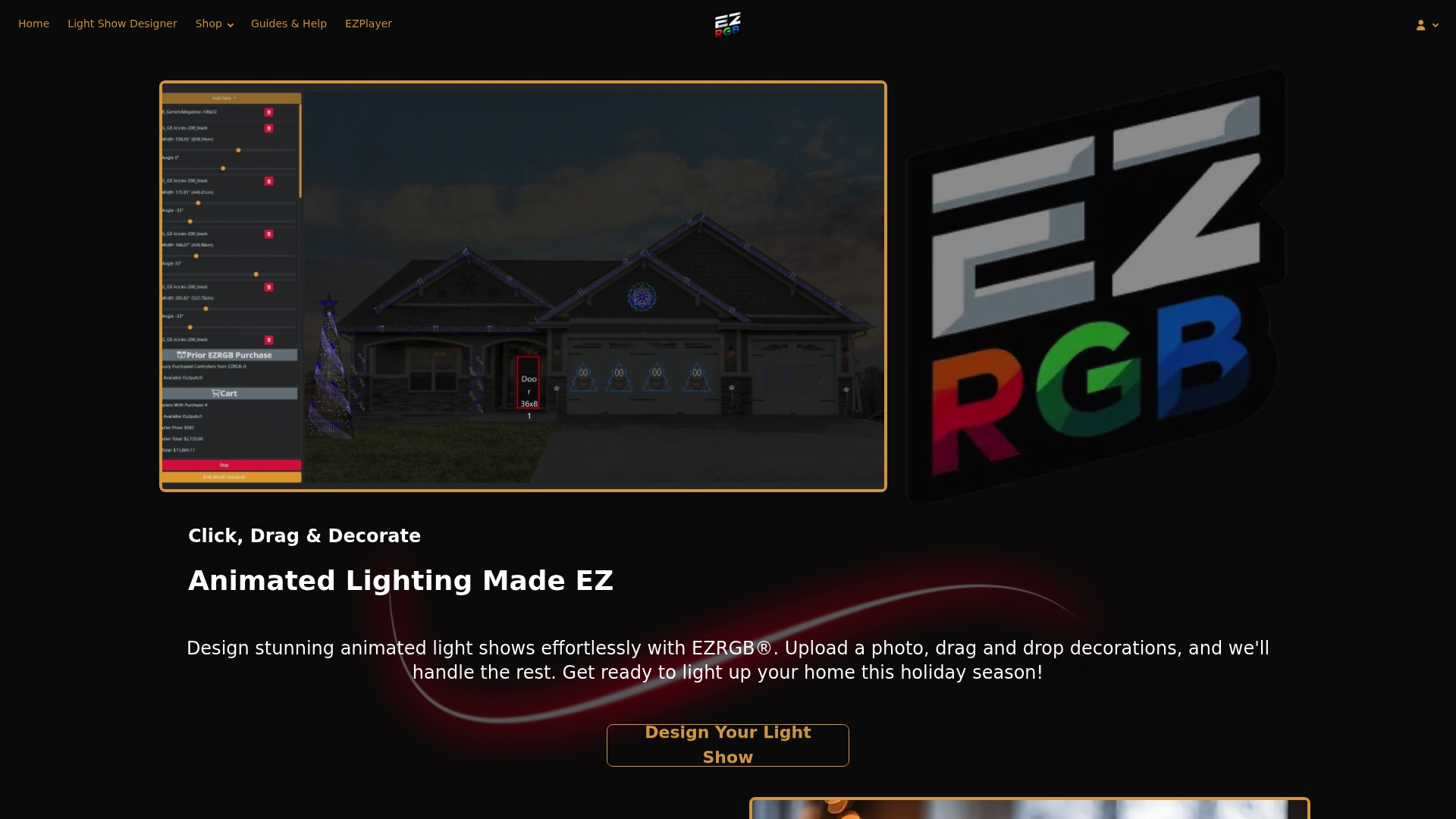
For homeowners who want a plug-and-play starting point, EZRGB’s Christmas Light Show Kit 1 includes pre-programmed controllers, RGB props, and everything needed to run a synchronized animated show out of the box. When you’re ready to expand, your existing EZRGB layout travels with you: add props in the designer, request a regenerated sequence, and EZPlayer picks up the update without rebuilding your show from scratch.
To get started or purchase a sequence, visit EZRGB.com and log into your account. Then search out library of hundreds of sequences.
Useful sources and files to bookmark
Keep these links and files accessible whenever you’re troubleshooting or preparing a regeneration request.
Official documentation:
Critical xLights files to keep backed up:
| File | Location | Why It Matters | |
|---|---|---|---|
xlights_rgbeffects.xml |
Show folder root | Defines every model, prop, and pixel count in your layout | |
xlights_networks.xml |
Show folder root | Maps controllers, universes, and channel start numbers | |
.fseq files |
Show folder / Sequences | The animated sequence data; one file per song | |
.mp3 files |
Show folder / Sequences | Paired audio; filename must match sequence metadata exactly | |
Support ticket checklist: show folder path, xLights version, screenshot of model view, controller IP and status, exact filenames of .fseq and .mp3, and your EZRGB layout screenshot with model names visible.
FAQ
What files does an EZRGB sequence package include?
A purchased EZRGB sequence package typically includes a .iseq sequence file, EZRGB also include xlights_rgbeffects.xml and xlights_networks.xml exports for direct xLights import.
Where do I put EZRGB sequence files in xLights?
Place the .fseq files inside your xLights show folder. The edit files should remain in the unzipped folder in your show folder.
Why do some props show no lights after importing an EZRGB sequence?
Missing lights usually mean the model in the sequence don’t match your xlights_rgbeffects.xml. Open the sequence in xLights, check for unassigned models to controllers.
What is the difference between EZPlayer and xLights for playback?
EZPlayer is EZRGB’s dedicated show player that reads your xLights files directly, validates your show folder, and handles scheduling through a local web UI with playlist and jukebox support. xLights (via xSchedule) offers more granular control but requires manual playlist and output configuration.
When should I request a new sequence from EZRGB instead of remapping locally?
Always reupload your xlights files, xlights_rgbeffects.xml and xlights_networks.xml when you’ve made any layout changes such as adding new prop types, restructuring your roofline, or adding a controller.