
Christmas Pathway Lights Ideas: Animated Borders for Your Walkway

Christmas pathway lights can frame the approach to your door and tie the walkway into an animated display. Keep ordinary lighting for seeing steps and edges, and use decorative pixels as an added visual layer. With EZRGB, design the border on a photo of your home, let the platform determine the equipment and use the required cloud workflow to configure the show. These ideas are starting points for your layout; the effects you see depend on the sequence you choose.
Start with the classics, then decide what animation adds
Start with the shape of your entrance. A straight walk can suit a simple border, while a curved path may work better with a line that follows the planting bed. Nearby shrubs, existing garden features and the house itself can help connect the path visually to the rest of your display. Keep the walking route open as you try ideas.
A fixed-color border creates a consistent look. Animated RGB pixels add changing colors and movement as part of a lighting sequence. A chase, fade or pulse is a creative direction to consider, rather than a promise that every purchased sequence will include that effect on your pathway. Review the show with your own layout before deciding.
Decorative pixels are not path illumination
This is the most important planning idea on this page. Animated pixels are decoration. They are not a substitute for the light you need to see your steps.
Plan the practical walking light separately from the decorative show:
-
Keep the lighting you already rely on to see your steps, such as a porch light or existing path fixtures, working as normal.
-
Treat the animated border as the layer on top, and don’t count it as your walking light.
-
If your show runs fast color changes, walk the path at night once before you open it to guests, and adjust the sequence if anything is hard to read underfoot.
Check steps, edges and the entrance with the decorative show both running and off. Changing colors and dark moments in a sequence should not leave guests relying on the animation to see where they are walking. If existing lighting does not make the route clear, address that separately before welcoming visitors.
Keep paths, entrances and accessibility routes clear
A pathway display only works if people can use the path. Before you place anything, walk your routes and ask who will use them: kids, grandparents, delivery drivers, someone with a stroller or a mobility aid.
-
Keep the full width of the walkway, the steps and the front door area free of props.
-
Keep entrances and any accessibility route (a ramp, a level path) completely clear.
-
Keep cables out of walking routes, doorways and wheel paths. Follow the actual cable and mounting instructions; hiding a cable under decorations does not remove a trip hazard.
-
Use outdoor-rated lights, test them before installing, and plug them into GFCI-protected outlets, following the equipment instructions.
See our guide to securing outdoor holiday props for more mounting considerations.
Animated pathway border ideas
A color-chase edge along the walkway
A pixel line alongside the path can connect the entrance to the house visually. Try one side first, then compare it with a two-sided border in your design. If you like a chase effect, check how the chosen sequence treats the border rather than assuming it will always move toward the door. Choose products suited to their intended location and mounting; ground-level placement does not mean equipment can sit in standing water.
Warm white and gold with a gentle shimmer
A warm-looking white and gold palette is one option for a traditional Christmas feel. Compare it with the colors already on your house and nearby decorations. RGB-mixed white can look different from a dedicated white LED, so do not assume an exact color-temperature match. A gentle shimmer is an idea to look for in a sequence, not an automatic setting promised by the kit.
Lights that pick up the rest of the show
Use a shared color palette to connect the pathway with rooflines and props. For example, a red-and-green border can support a traditional theme, while blue and white can suggest a winter scene. Keep the border visually simpler if the house already has a busy arrangement. Our holiday light display layout tips offer more planning ideas.
Driveway edges and the arrival route
A driveway border works like a walkway border, only longer, and it frames how guests arrive. Outline the edge of the drive with a pixel line, then continue the same color story along the walk to the door. Keep cables out of the wheel path and off any area where people step out of a car. As for the lawn and stakes, we don’t give universal spacing or stake recommendations, because yards and products differ. Follow the instructions for the specific prop you buy.
How to plan it with the EZRGB Designer
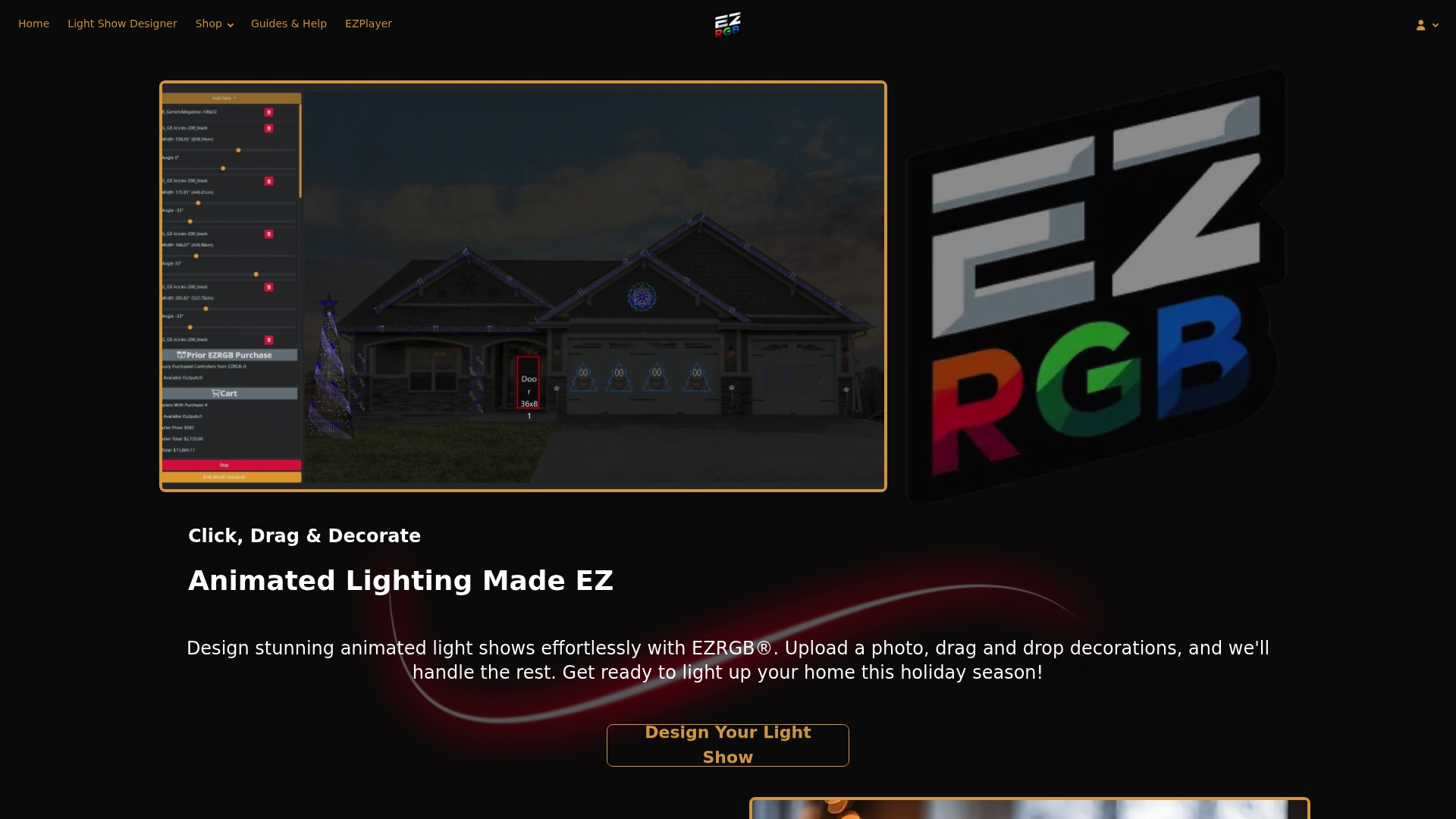
You don’t need to calculate parts by hand. The EZRGB cloud setup works from a photo of your home.
-
Upload a photo. Take a clear photo of the house and walkway from the street or the driveway.
-
Set the scale. Draw a box around a door or window you have measured, then enter its dimensions. The Designer uses that reference to scale the photo and estimate prop sizes and light counts.
-
Draw your layout. Use the tools to trace rooflines, curves, doors and windows, and to add the pathway border. The Designer estimates the lights you need.
-
Let EZRGB pick the equipment. The platform determines the equipment for your layout, so you don’t match controllers and parts yourself.
-
Generate the sequence. EZSequence builds a sequence to fit your layout. Music and sequences are sold separately from kits.
-
Download and play. The required cloud setup downloads and configures your show, and EZPlayer handles scheduling and playback.
Use the scaled photo to compare the border with your house and the rest of your design. Confirm site details that a photo cannot establish, including the actual walking clearance and a suitable place for physical mounting. Keep those checks practical; EZRGB determines the equipment, so you do not need to calculate controller and pixel requirements by hand.
Controlling the show with EZPlayer
EZPlayer runs the show and provides playlist scheduling and playback. For an EZRGB kit, use cloud setup to download the files and sequences and configure the show. EZPlayer is an installed application, with website access for managing the registered player; simply opening a webpage is not the whole setup process.
One point on the network: EZPlayer’s Wi-Fi sync is separate from the Ethernet connection to each controller. There are no wireless controllers, so plan the wired runs to every controller as you lay out the yard, and keep those runs away from where people walk.
What the kits include, and what they don’t
Our Plug and Play Kits include their listed equipment and extensions. EZPlayer configures the controllers for your design through the cloud workflow. Mounting hardware for your surfaces is not part of that, because every house is different. Choose clips, stakes or fasteners that suit your surfaces and match the product instructions. Plug and Play Props and RGB Lights let you add individual pieces. Check the actual listing for the items in any kit you choose.
Start small and expand whenever you want
A short border can be enough to connect the entrance to the display. You can add props or RGB lights in the designer whenever you want, including after the season. The designer tracks available controller ports and identifies when additions require another controller. EZPlayer reprograms the controllers to fit the updated design when the show syncs.
For the physical installation, EZPlayer guides you on which prop goes where. You do not need to reconstruct the connection layout from installation photos next year. Photos are useful for sharing the finished display and keeping memories; mounting and safe cable placement still depend on your property.
Check the finished route before guests arrive
View the display from the approach people will actually use, then walk the route with its normal lighting on. Check the front step, changes in level, door swing and places where visitors may pause. Look for props projecting into the route, loose mounting parts and cables that have shifted during installation.
Watch darker passages as well as bright moments. Check nearby windows for distracting glare, and make any changes using supported options for your show.
Ready to light the path?
If you want an animated walkway border that matches the rest of your display, start with a plug and play kit, then explore lighting arrangements in our RGB sequences. Design it on your own photo first, and let the platform work out the equipment.
Sequences and their matching music are sold separately from kits. A sequence controls the lighting; purchasing it does not mean the music is included.
FAQ
Can animated lights replace regular path lighting?
No. Animated pixels are decorative, and you should keep the light you need to see steps and edges. Treat the border as a layer on top, and walk the path at night to check it.
How do I keep cables from becoming a trip hazard?
Keep cables out of walking surfaces, steps, entrances and wheel paths, following the product instructions. Do not assume that covering or concealing a cable makes the route safe. Recheck placement after the installation is complete.
Do I need technical skills to make a pathway border?
No. You upload a photo, draw your layout in the Designer, and EZRGB determines the equipment. EZSequence generates the sequence and EZPlayer schedules the show.
Can I run the show wirelessly?
EZPlayer syncs over Wi-Fi, but each controller connects by Ethernet. We don’t offer wireless controllers, so plan wired runs to every controller.